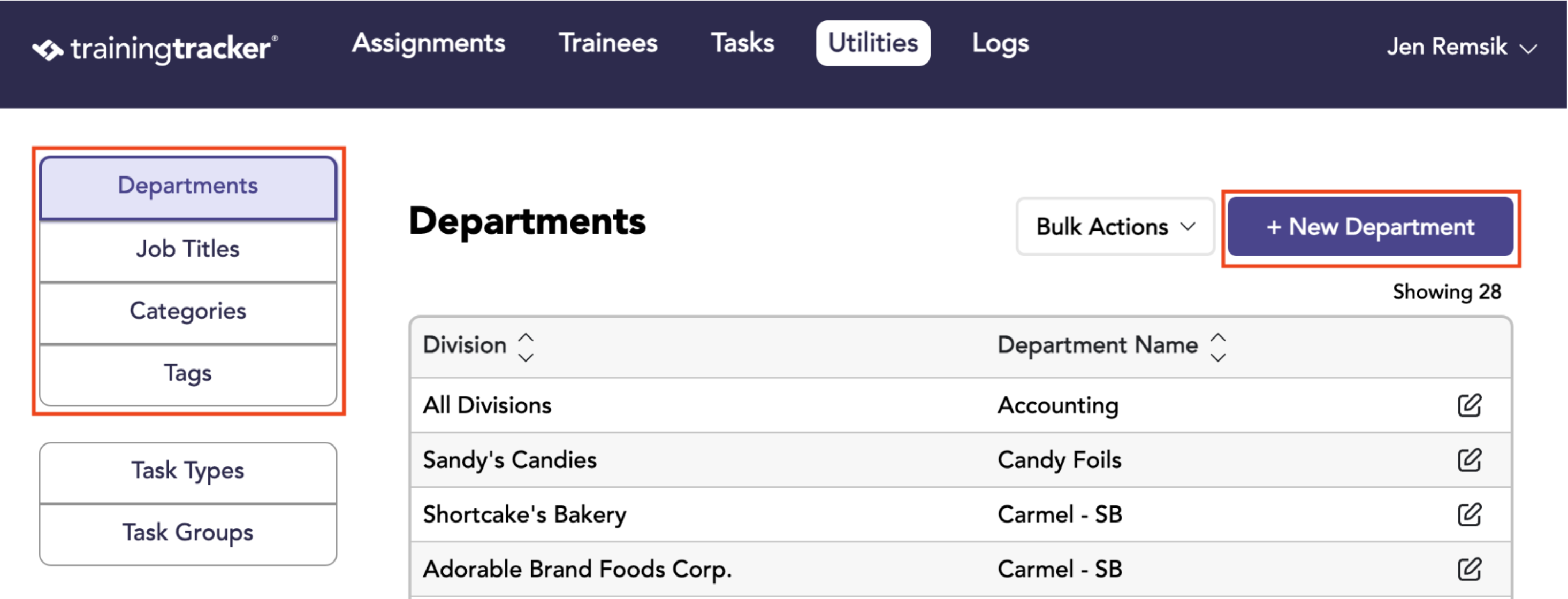
The Utilities tab in Training Tracker® is where administrators manage organizational settings for Trainees, Tasks, and Users, all of which can be created, edited, or deleted through simple forms.
Creating Trainee Utilities: Departments, Job Titles, Categories, or Tags
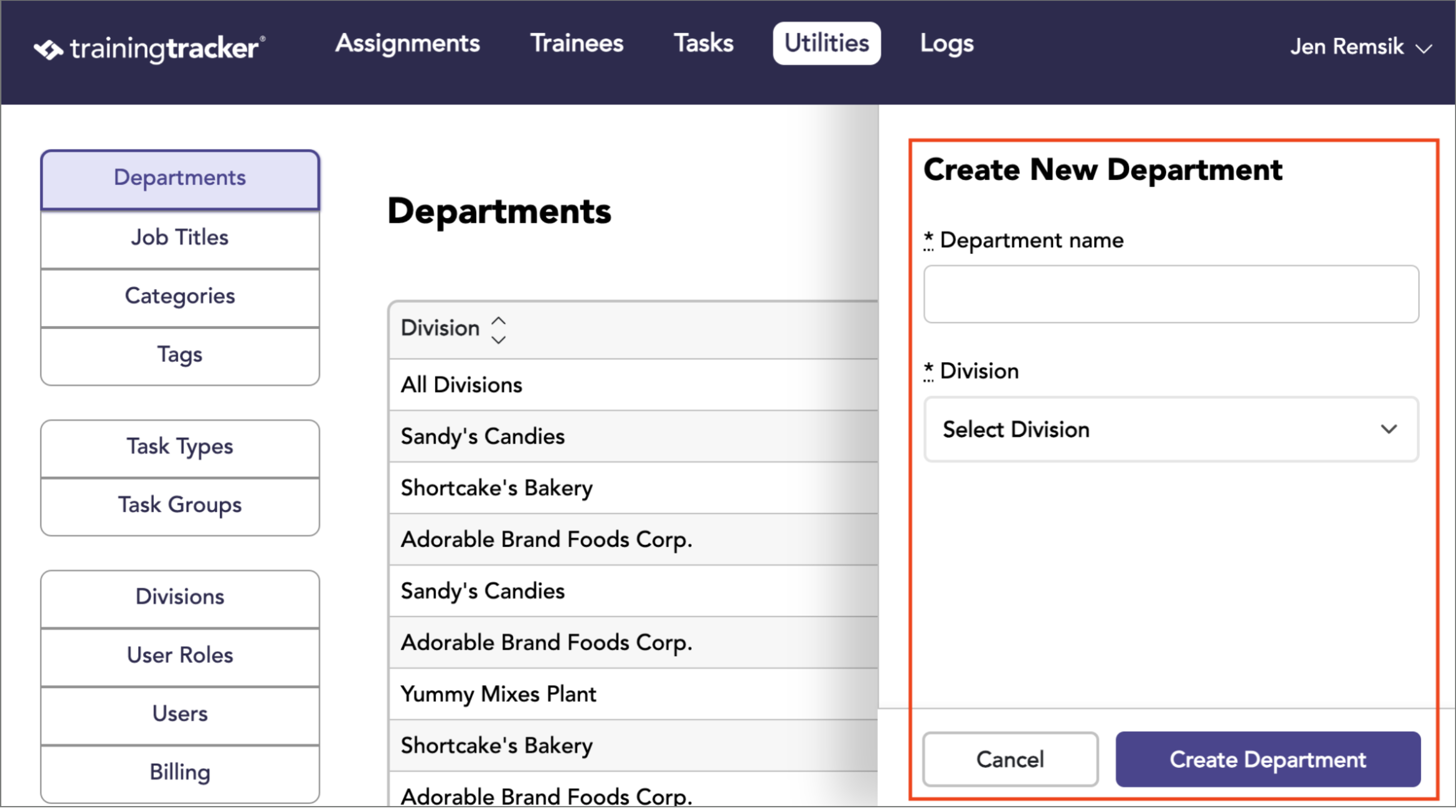
Complete the Create New form with the name and division from the dropdown.
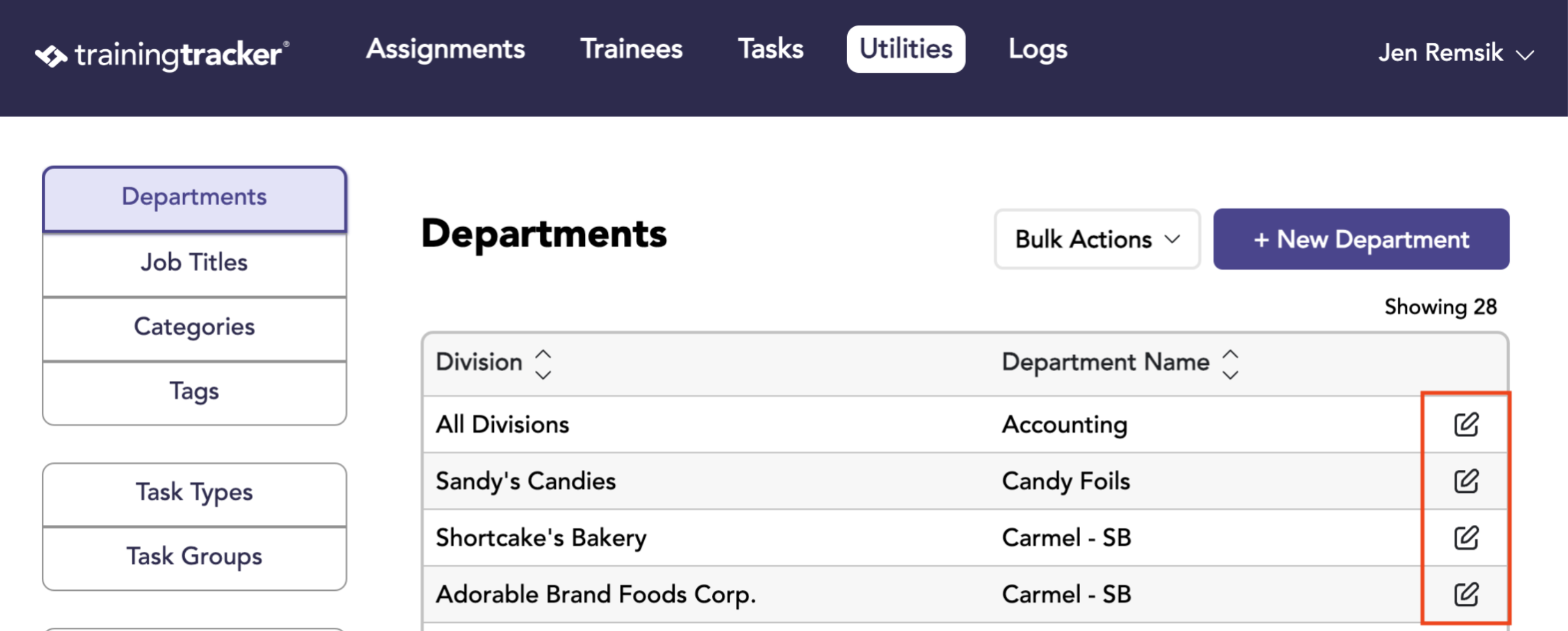
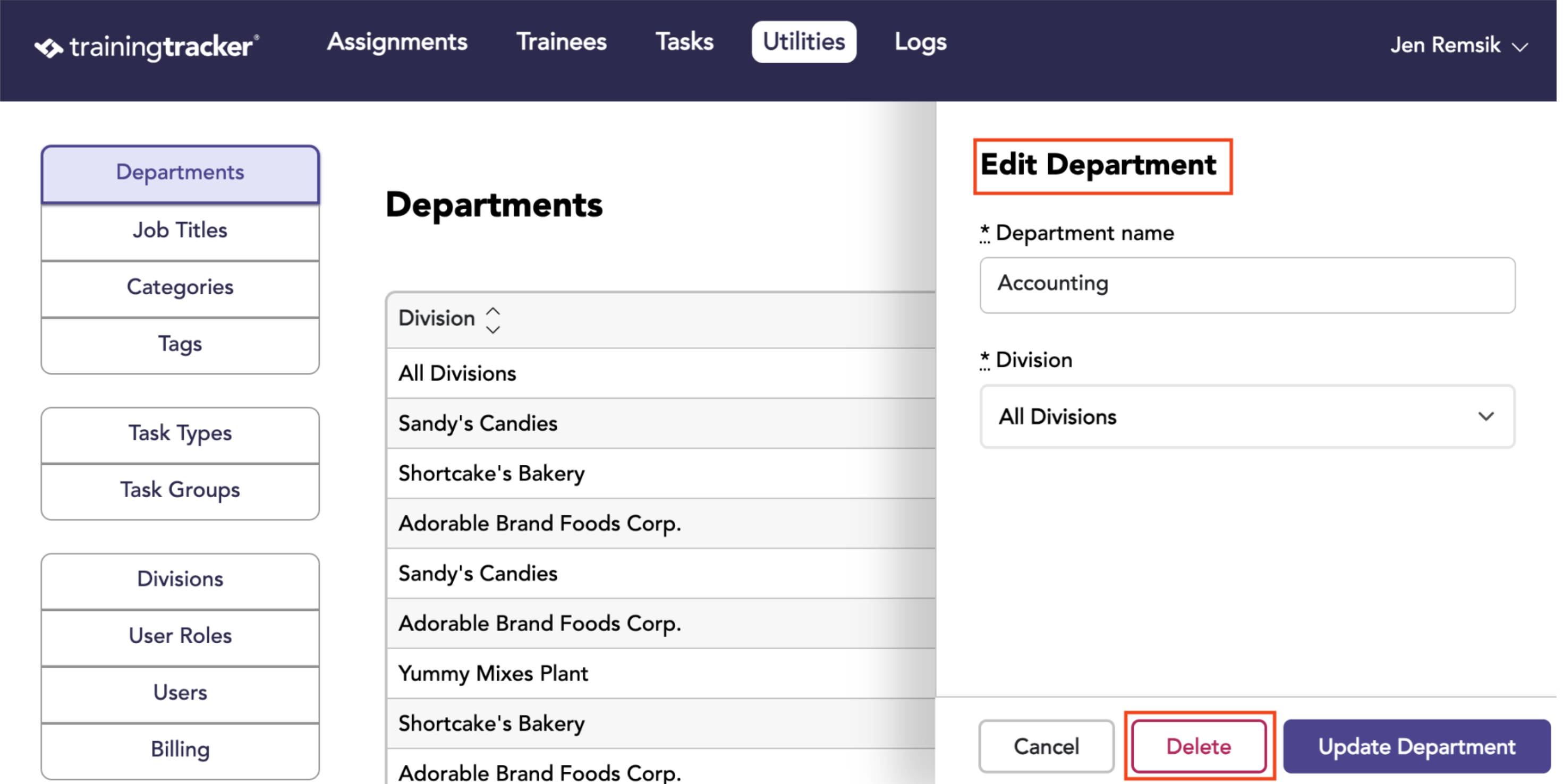
To edit an existing Department, Job Title, Category, or Tag, click the edit button at the far right of the desired row.
The Edit Form will appear after clicking the edit button. Here you can change the name or division.
To delete, select the Delete button.
Task Utilities: Task Types and Task Groups
They work the same way as the Trainee Utility items. How to Create and Use Task Groups
Admin/User Utilities
The procedure is basically the same for the Admin/User Utilities, with just a few differences.
Admin/User Utilities: Divisions
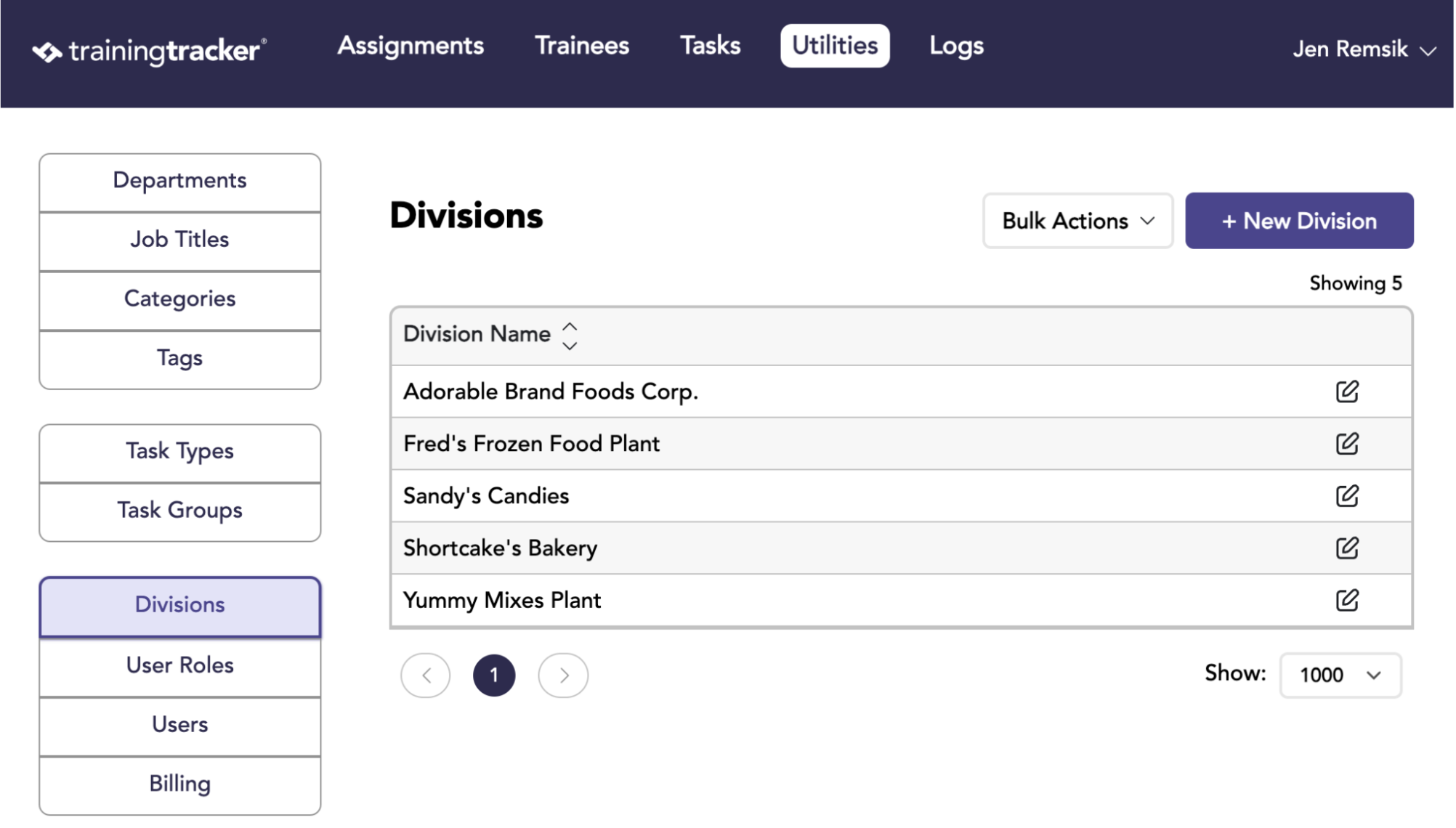
The tab lists all current divisions in the account and allows you to add new divisions or delete existing ones. To add a division, click the New Division button. Having multiple divisions and the ability to delegate Users and their roles to a specific division are features of the Enterprise package.
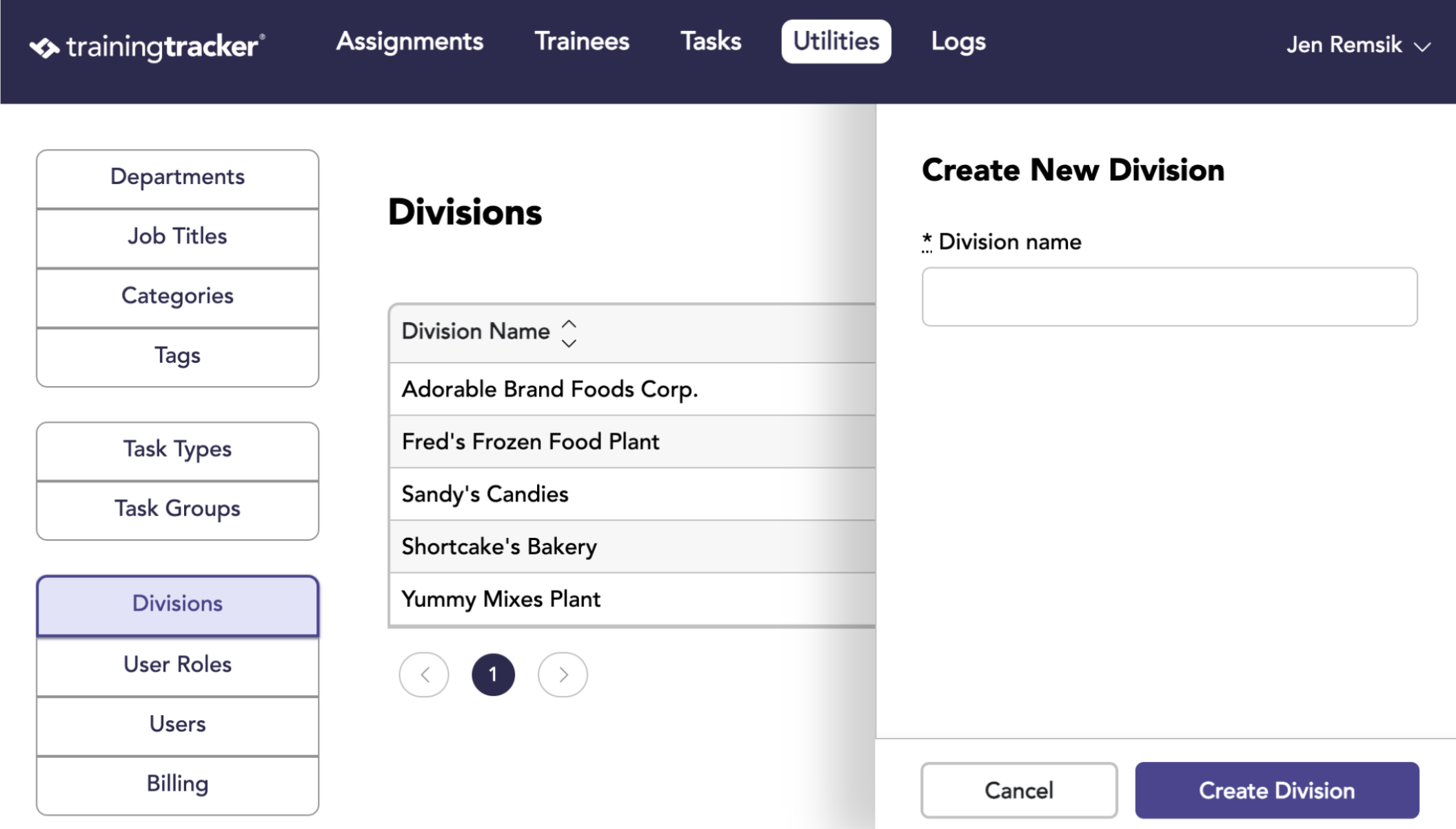
Enter the Division Name and click Create.
Admin/User Utilities: Roles
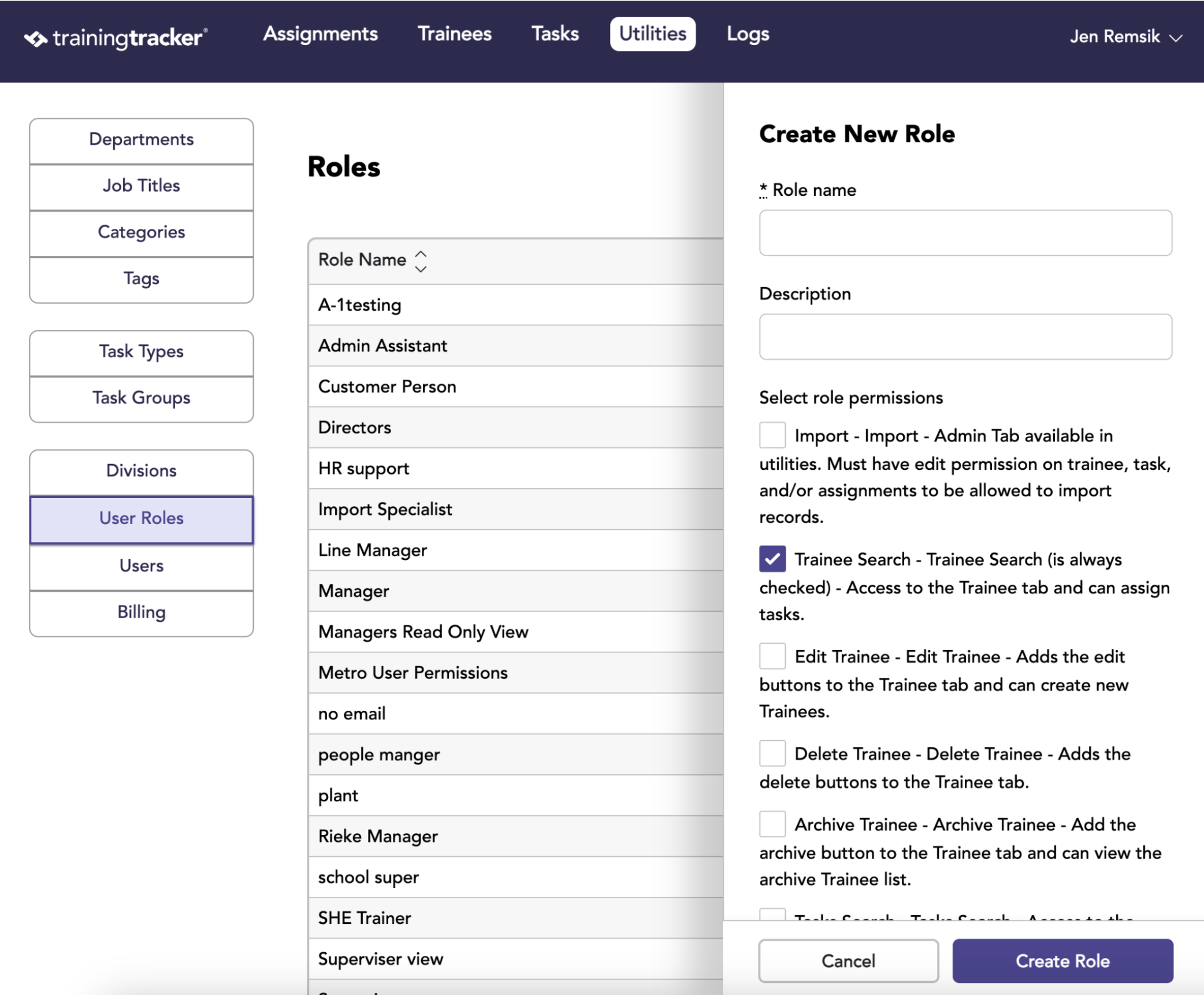
Roles are sets of permissions given to users. What roles do the different Users have in the software?
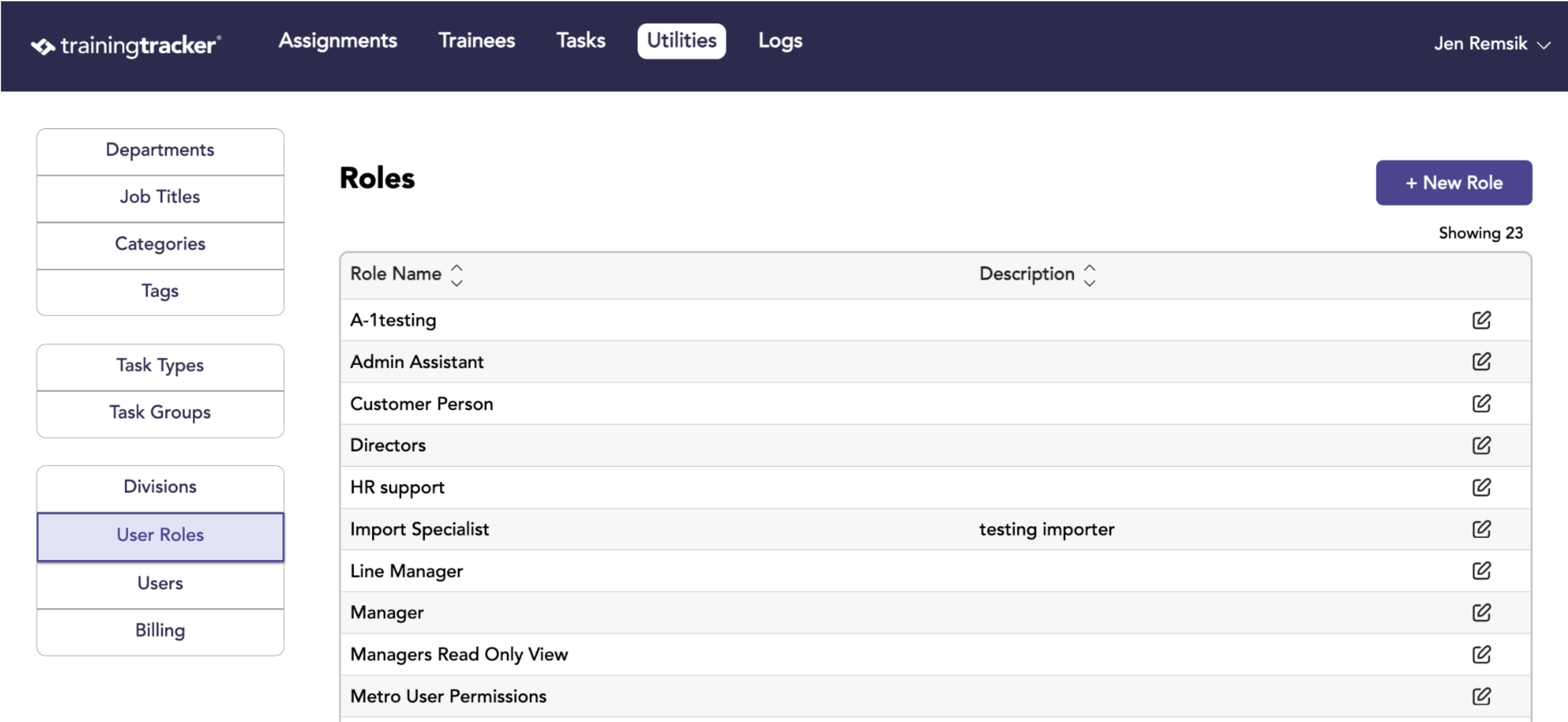
Click New Role to create a new role. The Create form includes a list of the different permissions a Role can have. You can then check/uncheck the permissions you want, title the Role, and save it by clicking Create.
Admin/User Utilities: Users A list of all current users registered in the account, and allows new Users to be added to the account. Existing users can also have their information edited or deleted from the system.
To create a new user Click “New User”.
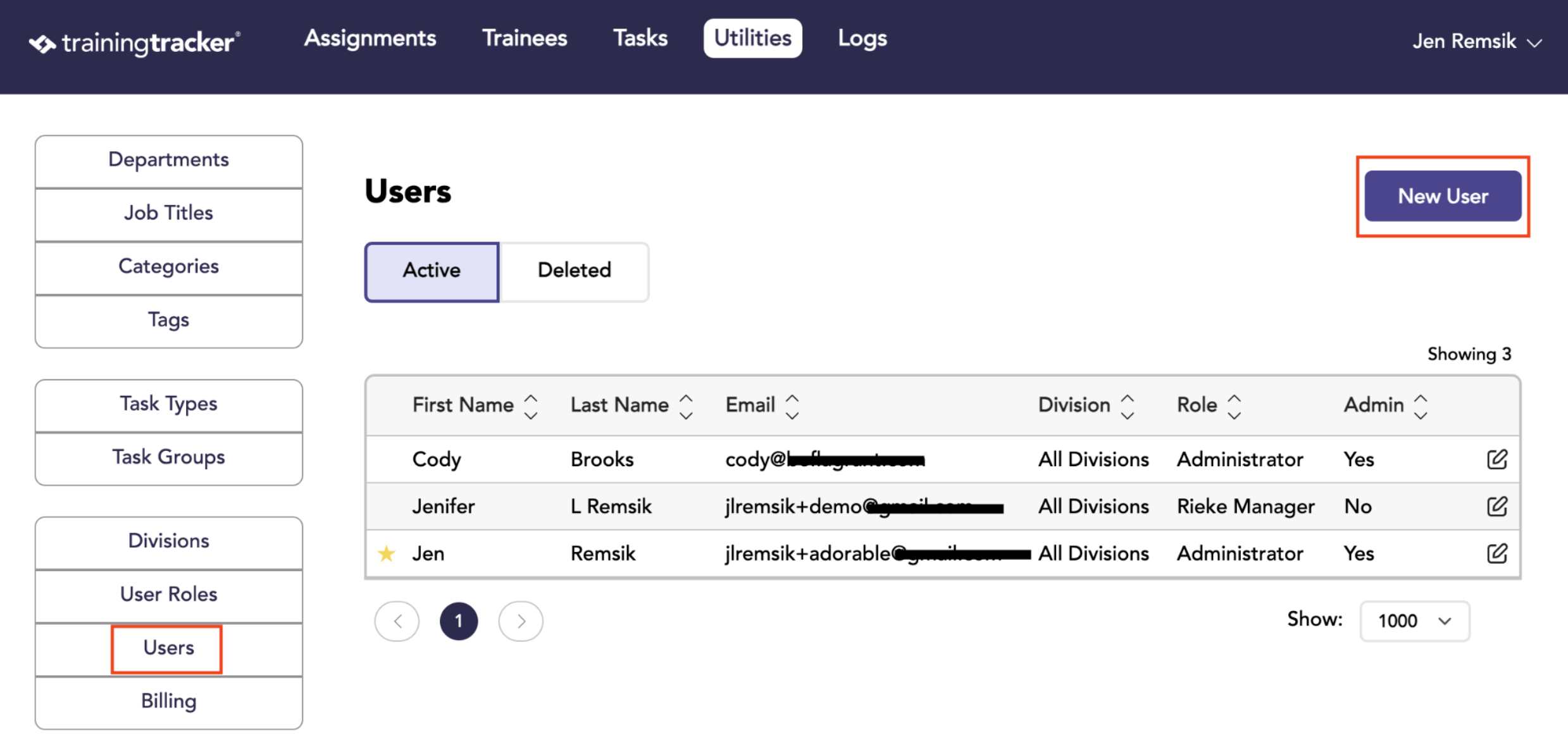
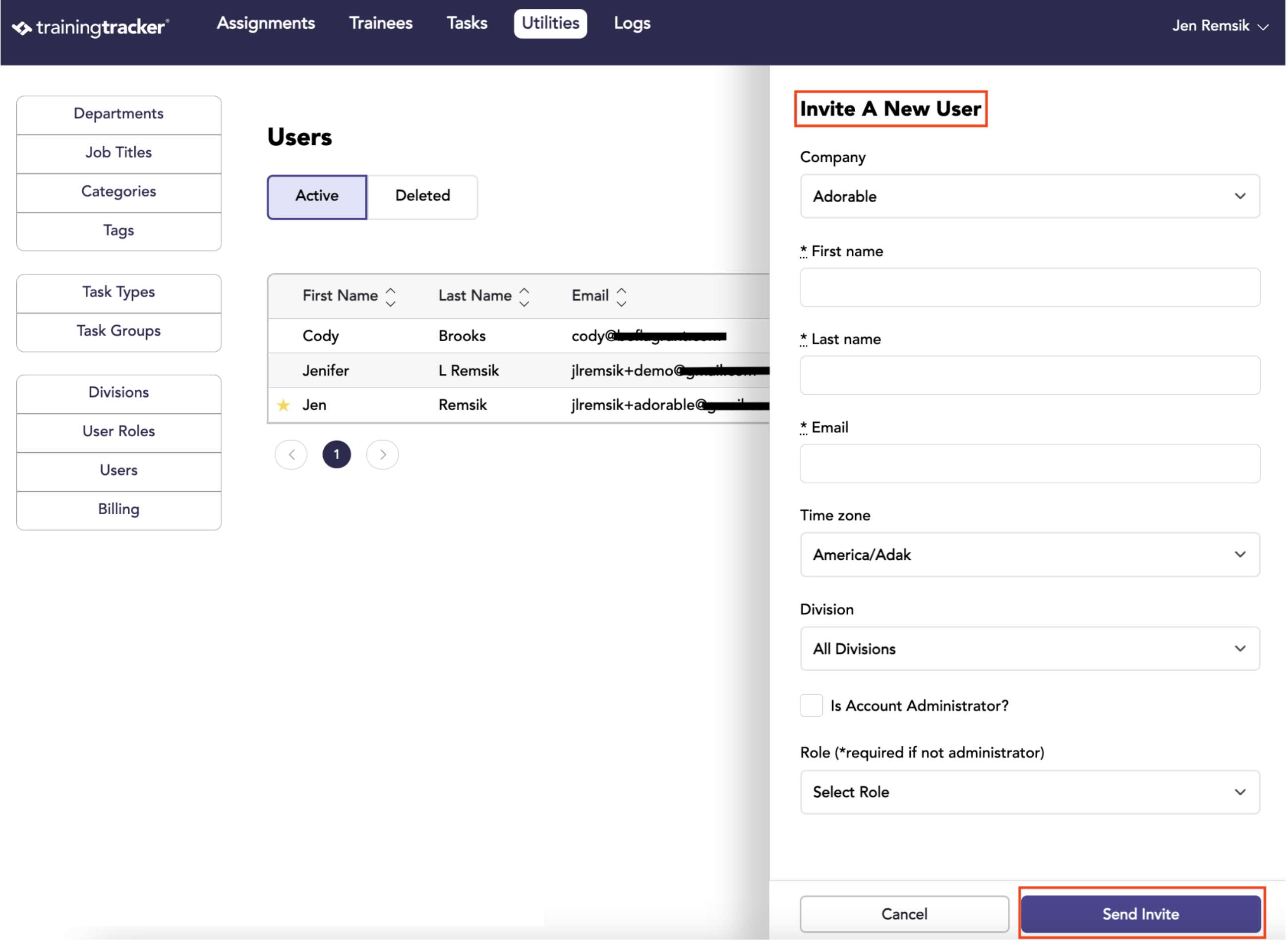
The New User form will appear. Here you can enter the required information and then click Send Invite. An invite will be emailed to the new user.