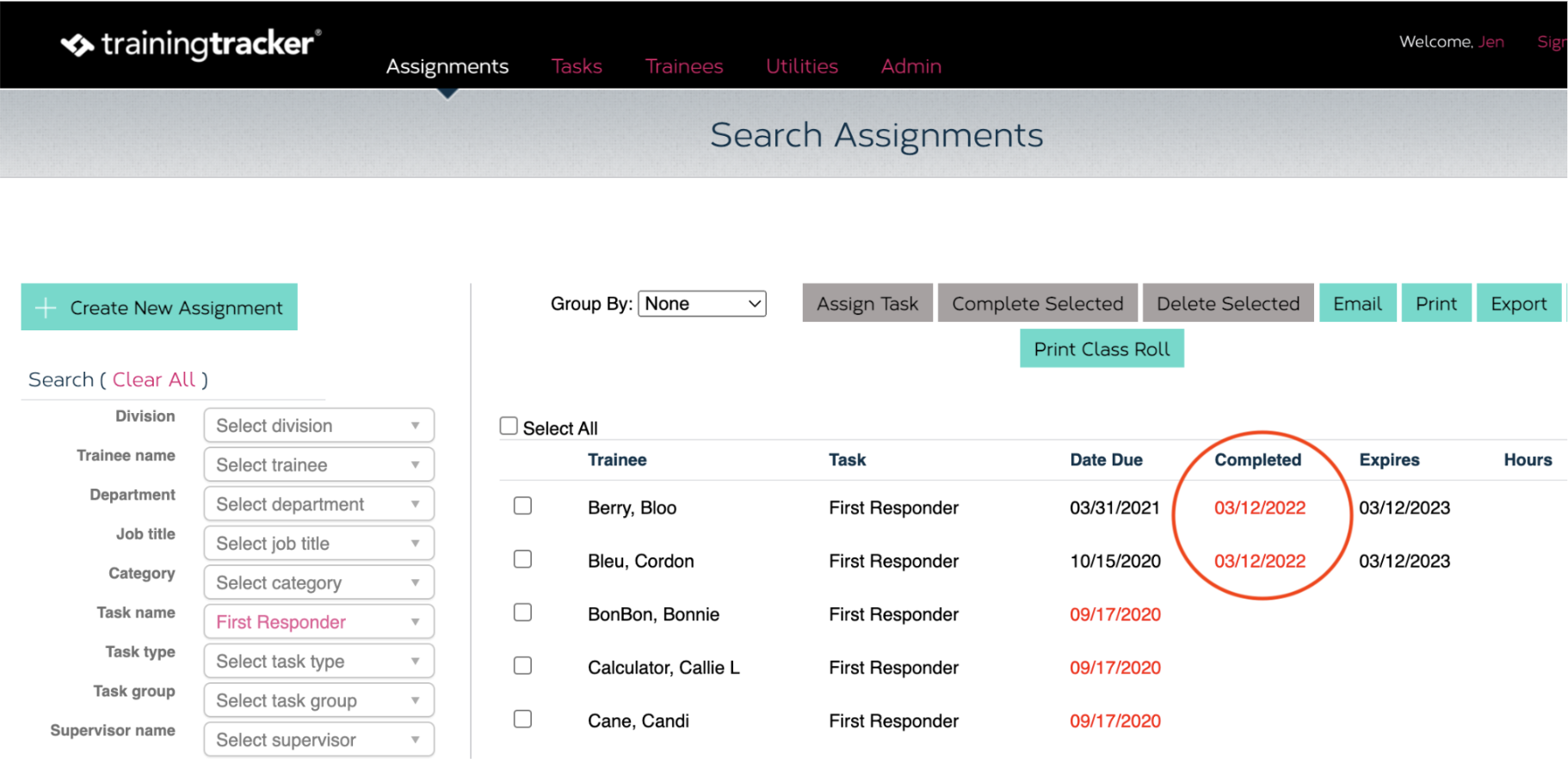
QR Codes in Training Tracker® (Pro and Enterprise) allow trainers to print a class roll sheet with QR codes and scan them via mobile device to record attendance.
Class Roll Sheet Overview
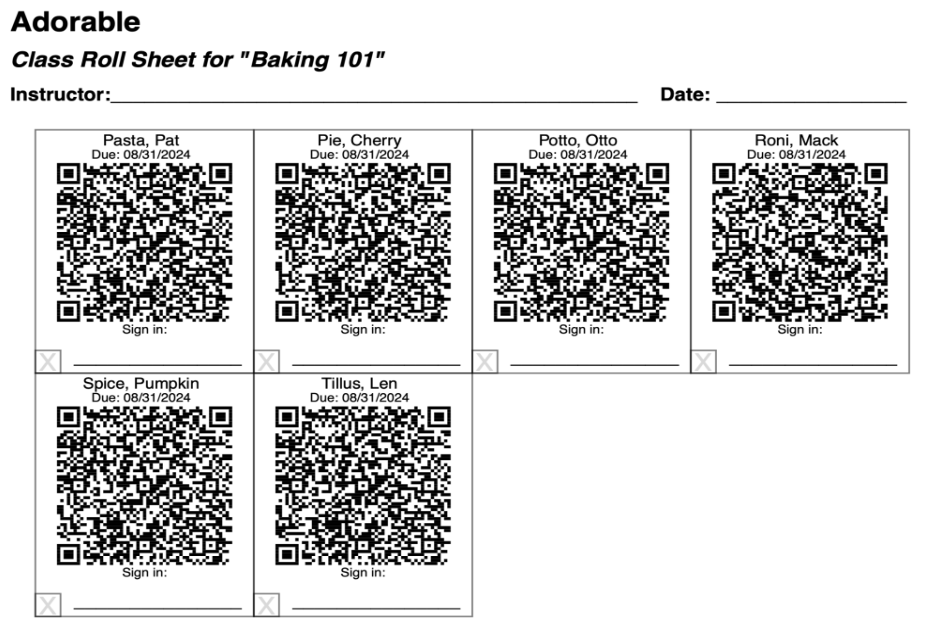
- A Class Roll Sheet contains a list of trainees who are assigned a specific task.
- There are also spaces for the instructor’s name, the date of instruction, and completion indication
- The QR Codes contain both the trainee and training task details
- We recommend using the “Sign-in” spaces for trainee signatures at completion of training and using a black marker to cross out the QR Codes of trainees who did not attend
- If you don’t have access to WIFI or cell service on your mobile device, we recommend either having the trainees sign in or check the attendance box so you can scan those QR Codes once you have WIFI or cell service.
- Use Class Roll Sheets to easily track attendees for upcoming training sessions and upload completion info to Training Tracker
Printing Class Roll Sheets
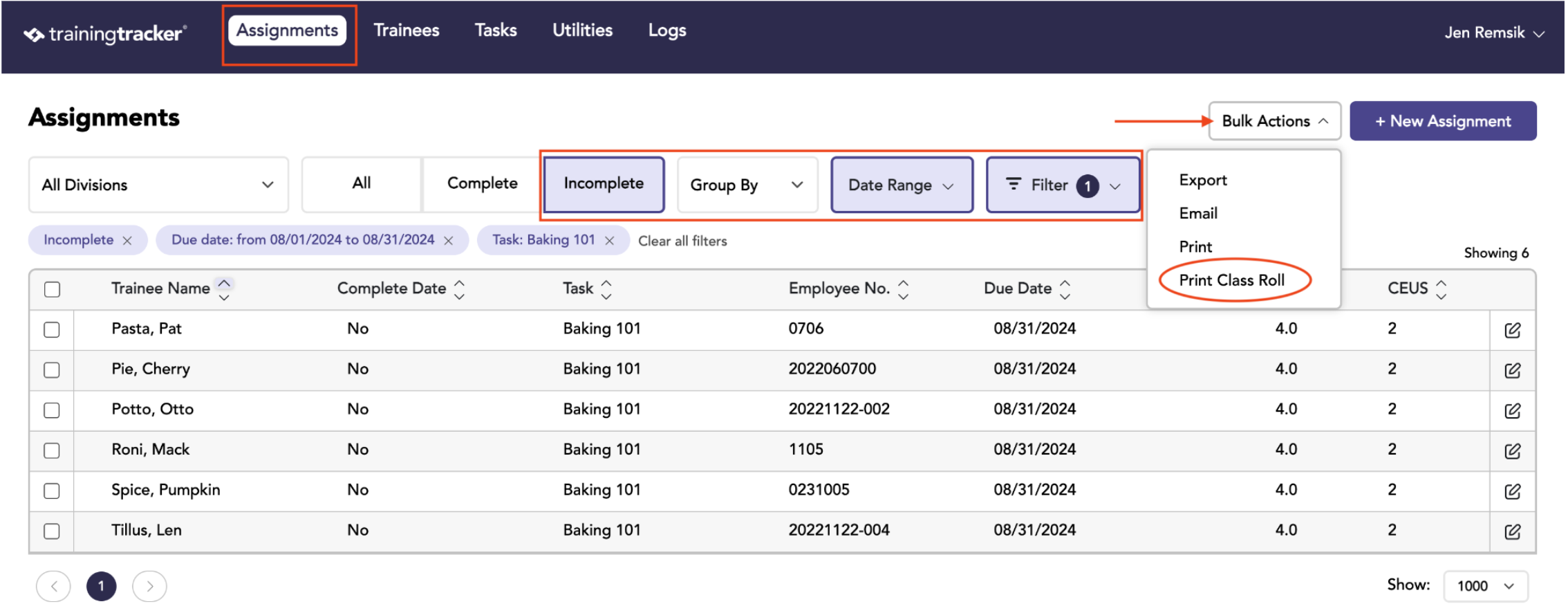
- Under the Assignments Tab, select the desired “Task name” and “Date Range”
- Click the “Incomplete Assignments”
- Click the Bulk Action button to select Print Class Roll.
How to Print Class Roll in 3 Steps
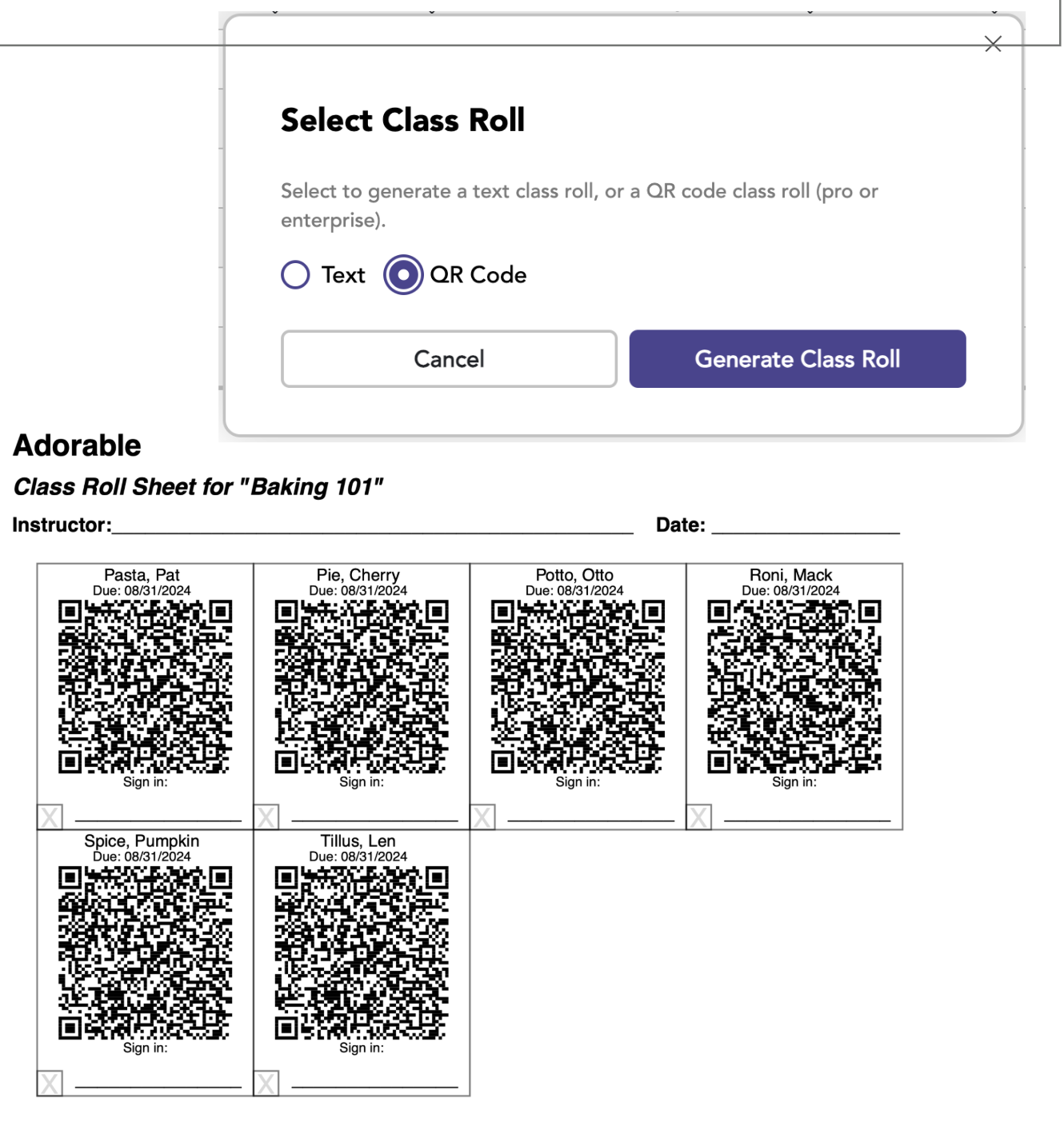
- Select to generate a Text or QR Code Class Roll.
- The file will go to your download folder. From there, you can view or print the class roll. You have the option to scan the QR Codes (Pro and Enterprise feature packages) or simply have the trainees sign in.
Scanning QR Codes
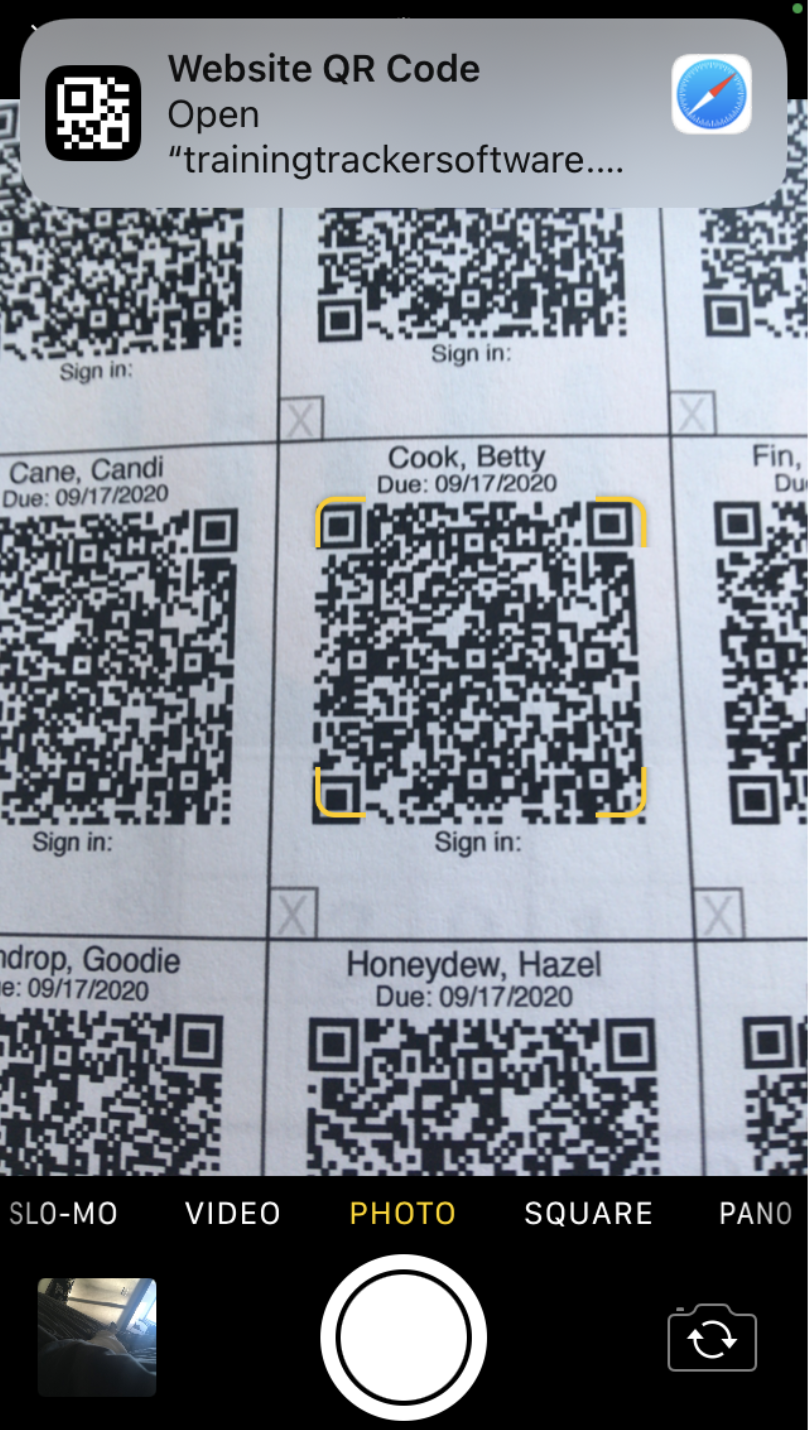
Scan a QR Code with your mobile device Open Training Tracker in the browser
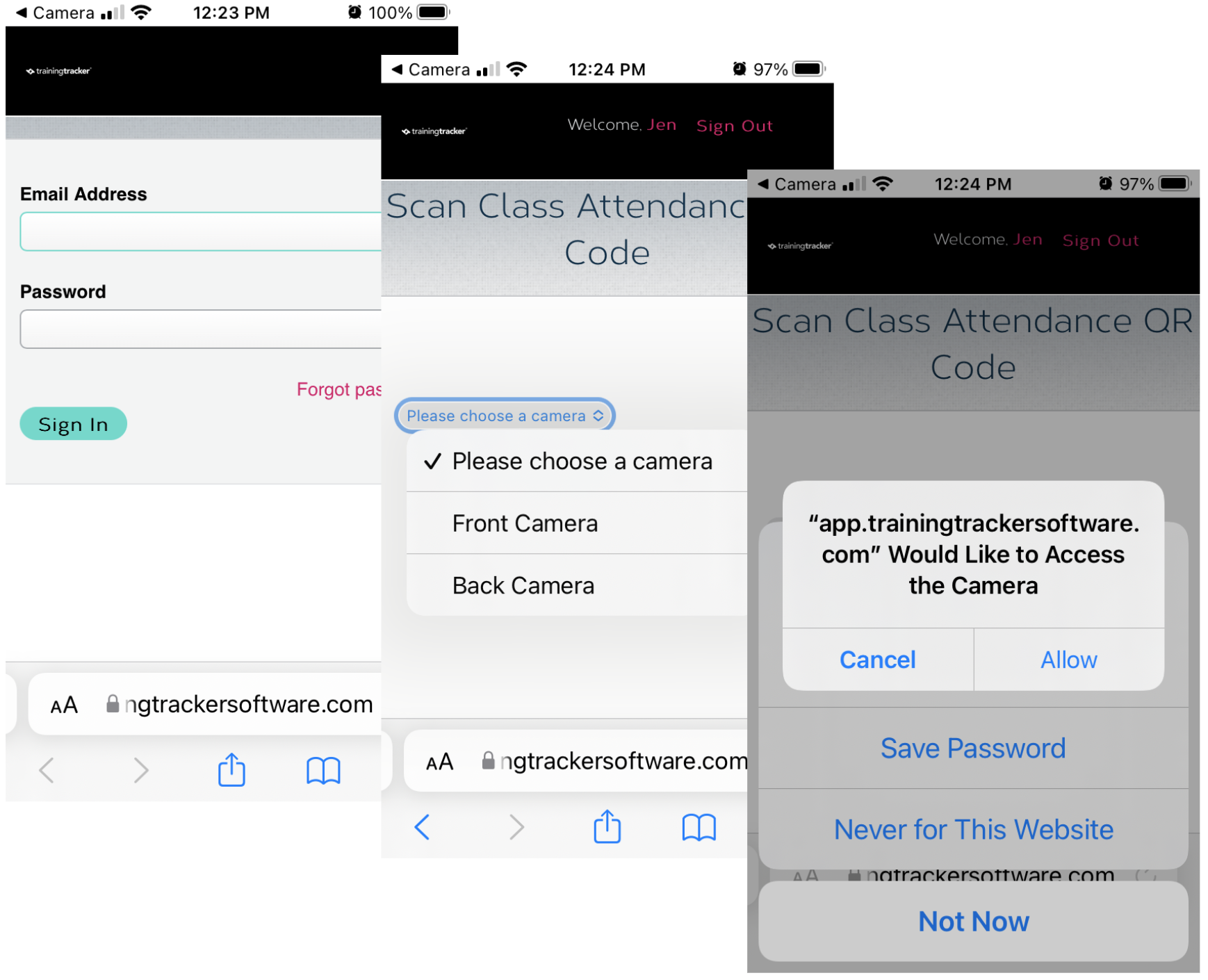
Log in and select the back camera. Your mobile device may request access to your camera.
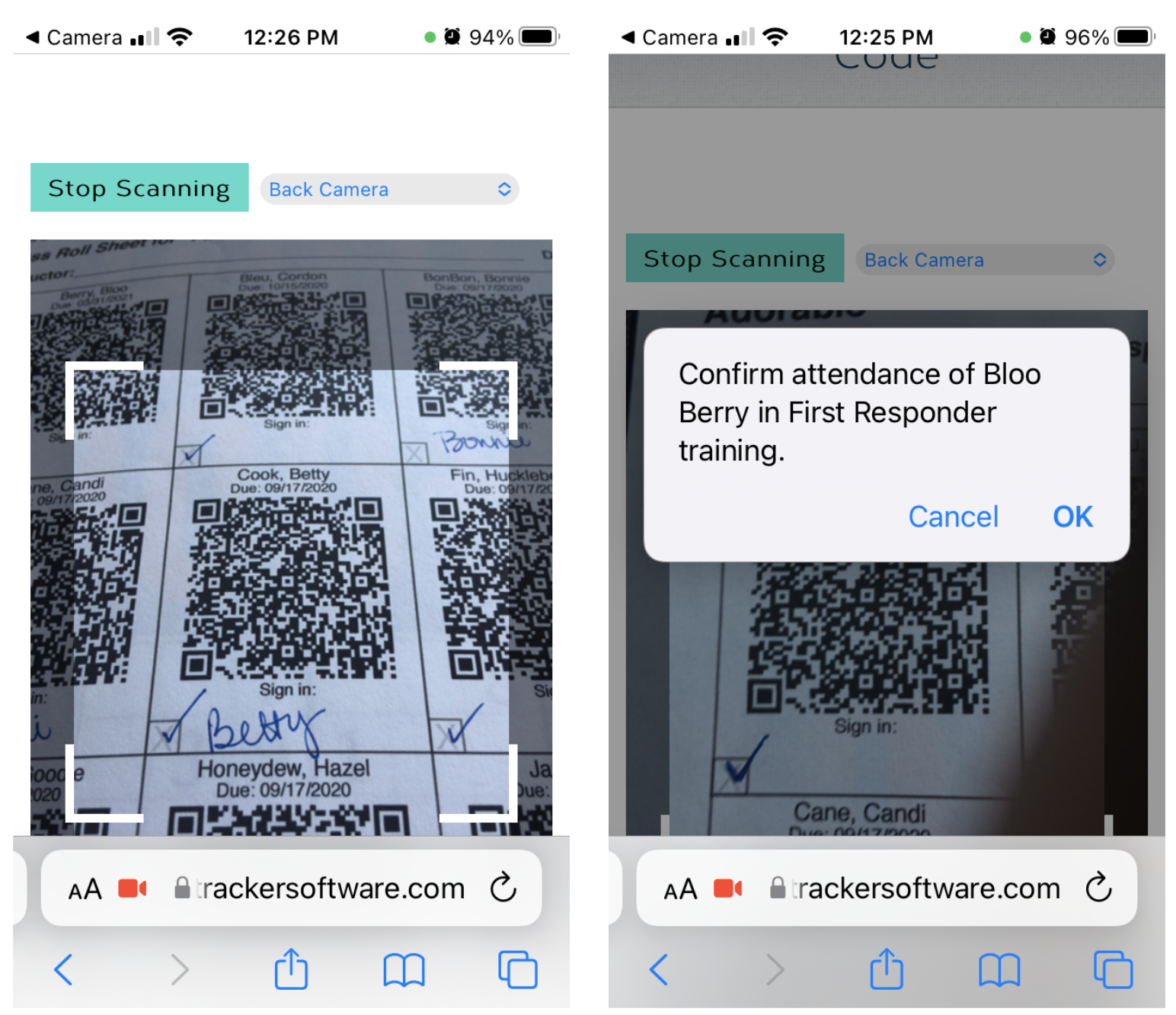
Scan a desired QR Code, slowly adjusting so the code fills the brackets Confirm you are scanning the correct code for the correct person
Proceed to the next desired QR Code Click stop scanning and sign-out when you are done
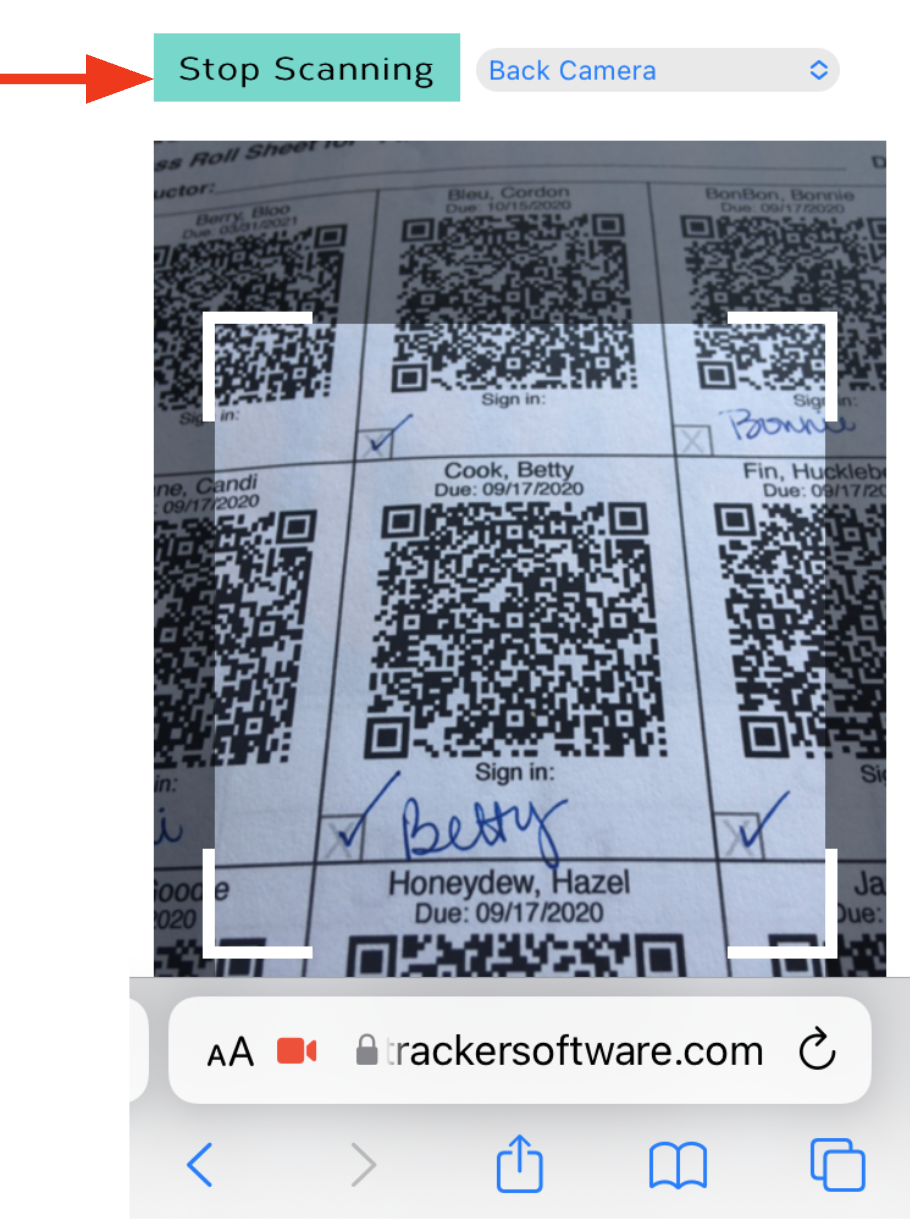
Process Scans in Training Tracker
Your scans are now updating Training Tracker by entering the scan date as the task’s Completed date.
If you are logged in to Training Tracker on your computer while scanning the QR Codes, you may need to refresh the browser to see the updates.