Use the Employee QR Codes to give each employee a code for read-only access to their training assignments.
Printing Employee QR Codes
- Go to the Trainees Tab.
- Apply the appropriate search filters for the desired Trainees.
- Click on “Name” in the search result table to ensure the names are in alphabetical order.
- Click the Bulk Action button to select Read-Only QR Codes.
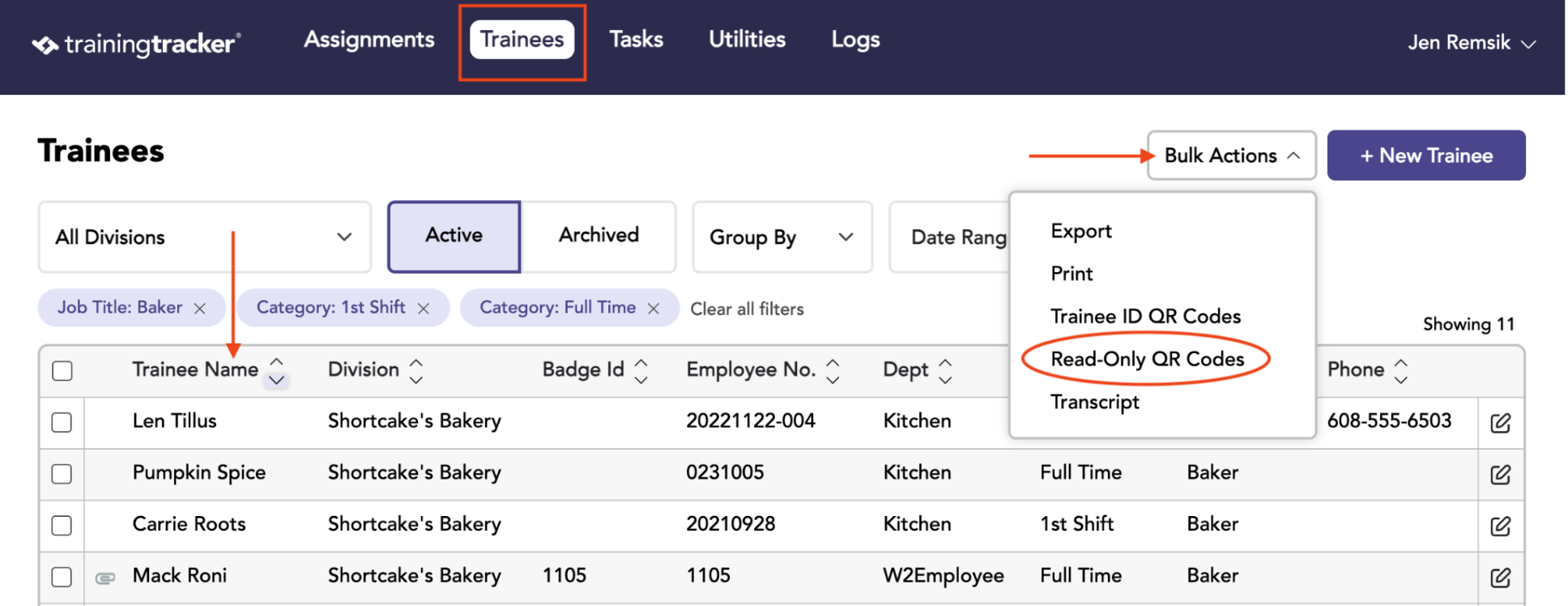
- The file will go to your download folder. From there, you can view or print the QR Codes for placement on badges or to distribute to your employees.
- Training Tracker recommends using Avery #22805 Adhesive Labels for printing.
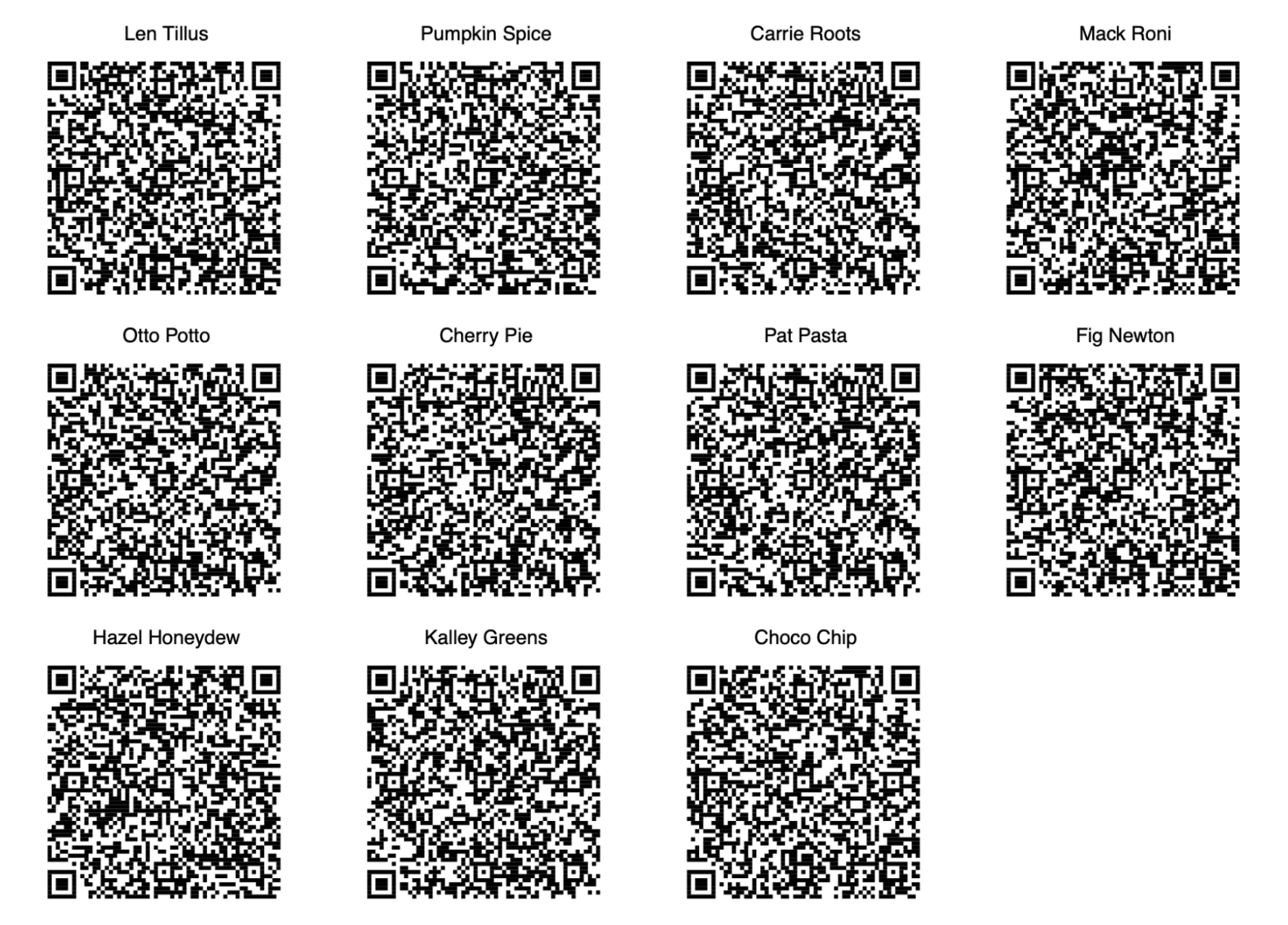
Employees scanning their QRCode
- Employees can use their mobile device to scan their QR code.
- By opening their camera app on their mobile device, and then pointing the camera at the QR Code.
- It should then redirect to a browser app for employees to view their records.
- Supervisors can also use the above instructions to scan an employee’s QR code in the field, especially if they need to verify the employee has completed the needed training to operate equipment, etc.
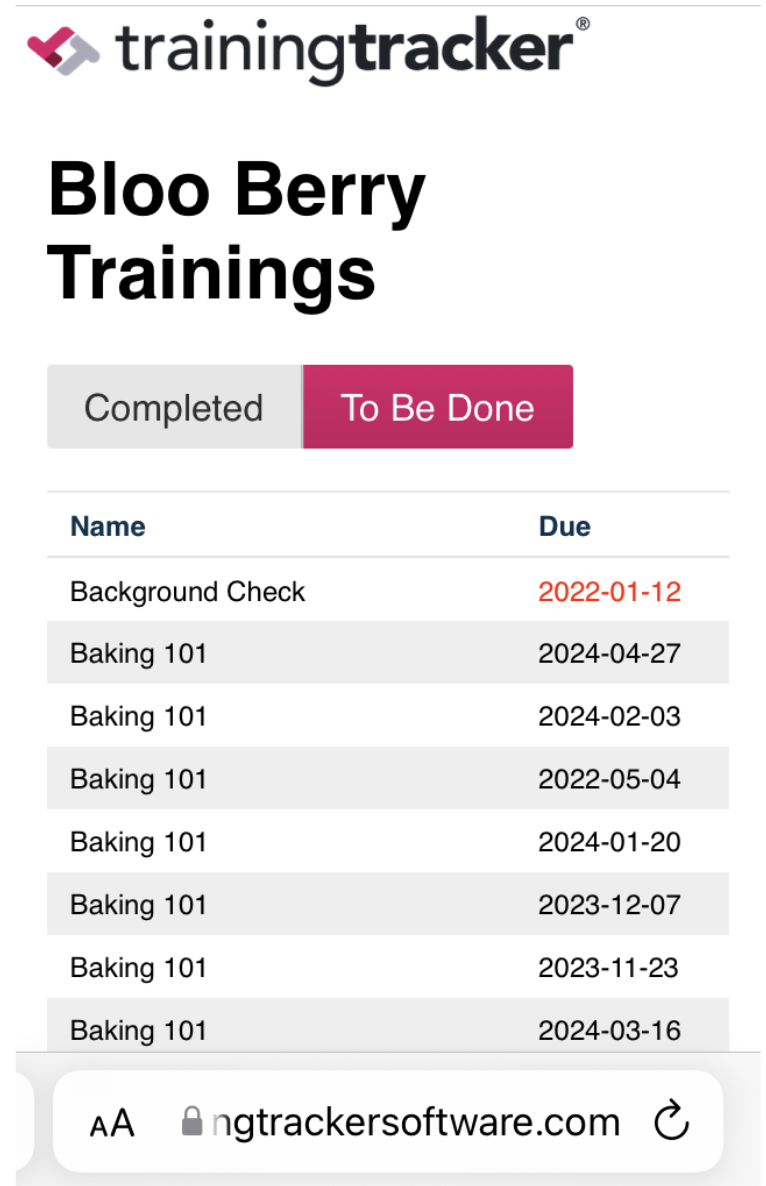
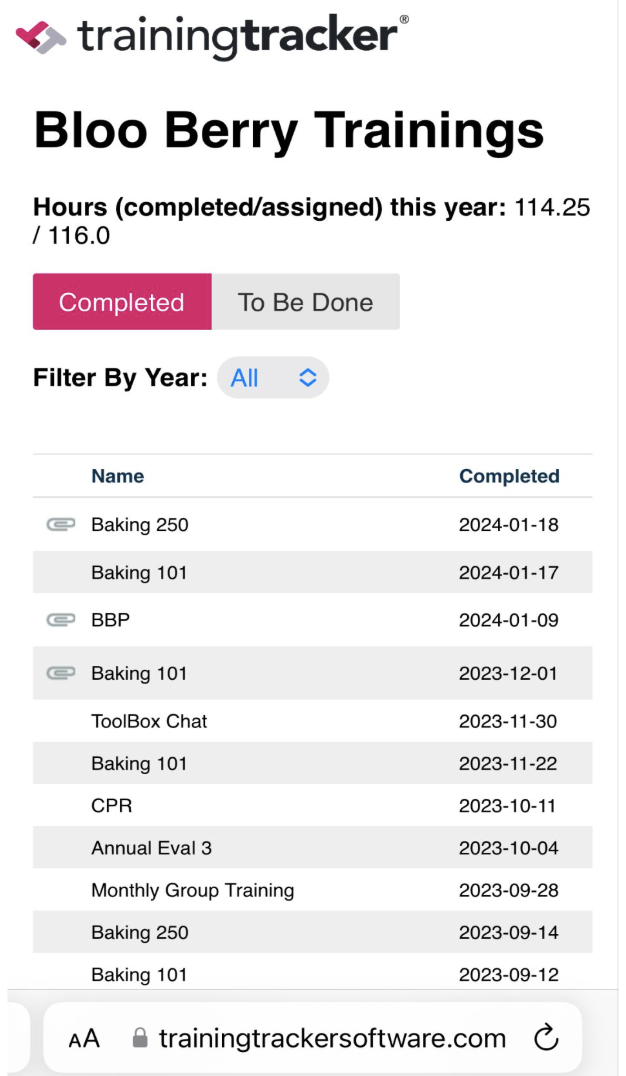
Click on completed to see the list of completed training.
Click on To Be Done to see the list of incomplete training.
Click on Name or Date to change how the list is displayed.
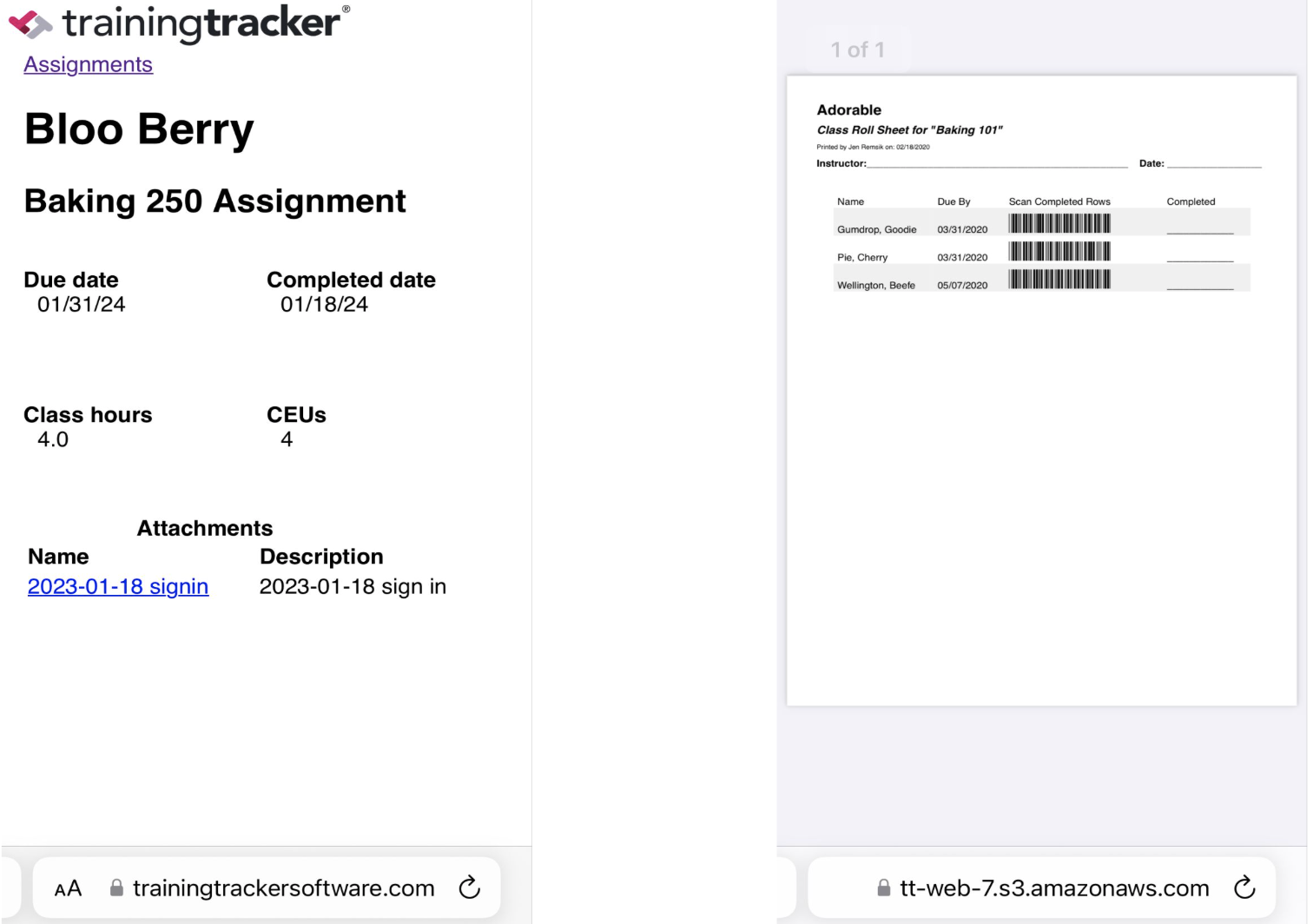
Completed Assignments View Attachments
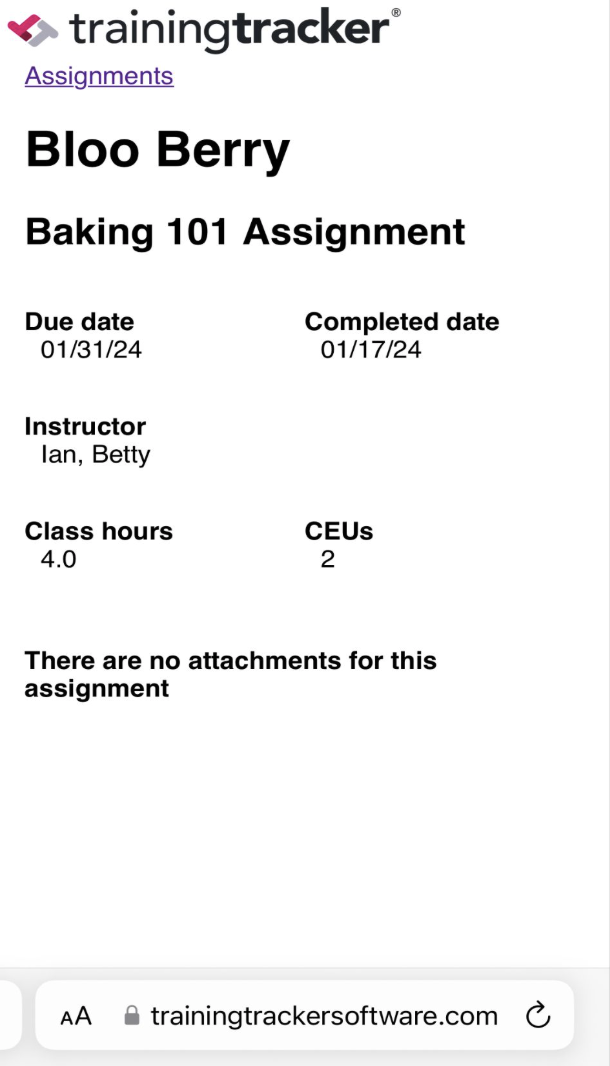
Tap the row of a completed assignment; it will take you to a more detailed page.
A details page without an attachment shows just the grade, instructor, etc.
A details page with an attachment will include the attachment link; tapping it opens a new tab.
To go back to the details page, you can switch tabs or click the browser’s back button. It all depends on the type of device.
To return to the completed assignments list, tap the Assignments link at the top of the details page.