Enter tasks to be assigned for training to your Trainees.
Select the Tasks tab in the top menu
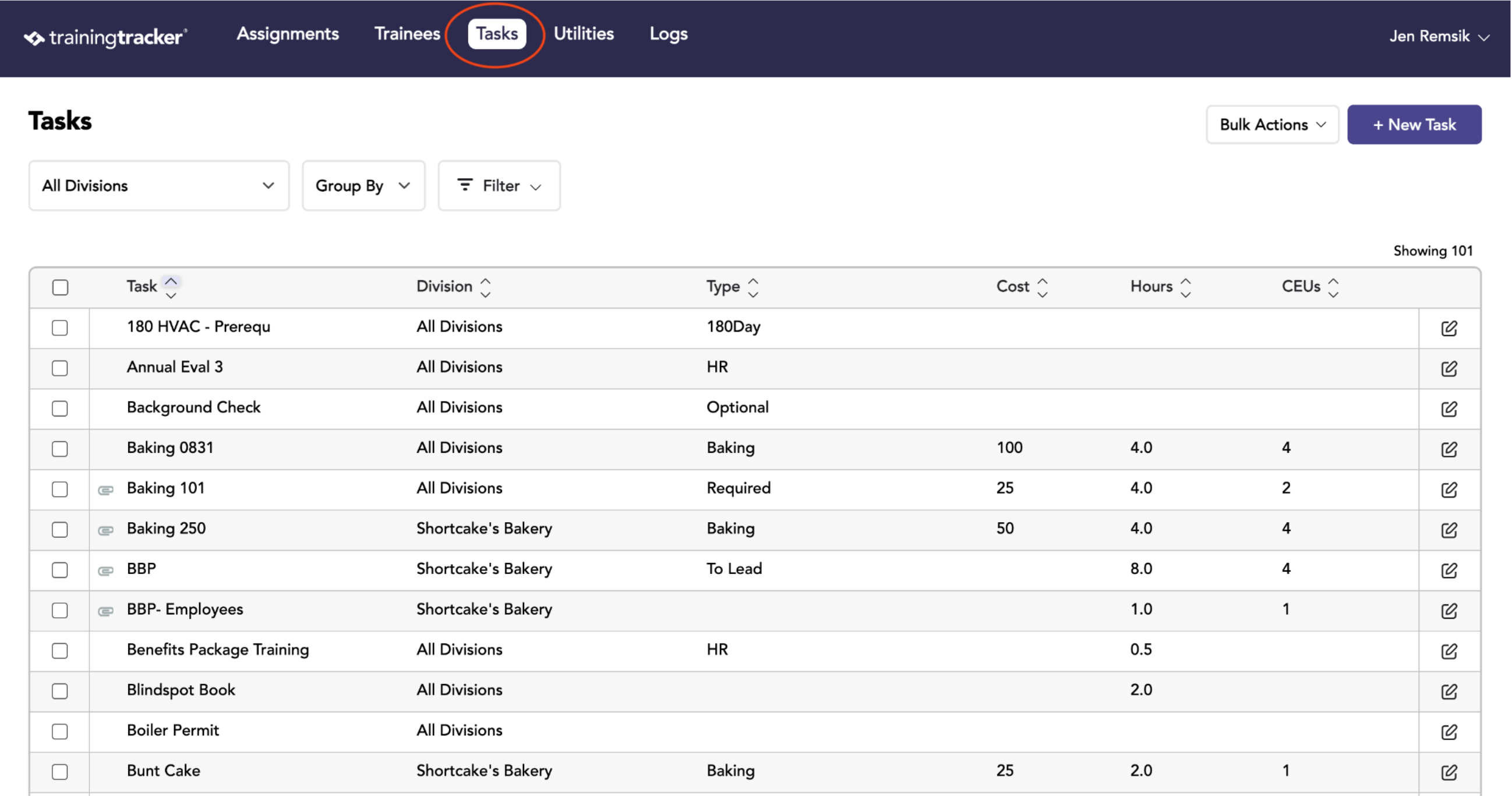
Click on the Create New Task Button
On the Tasks tab, all existing Tasks are listed, click the New Task button to add another Task to the list.
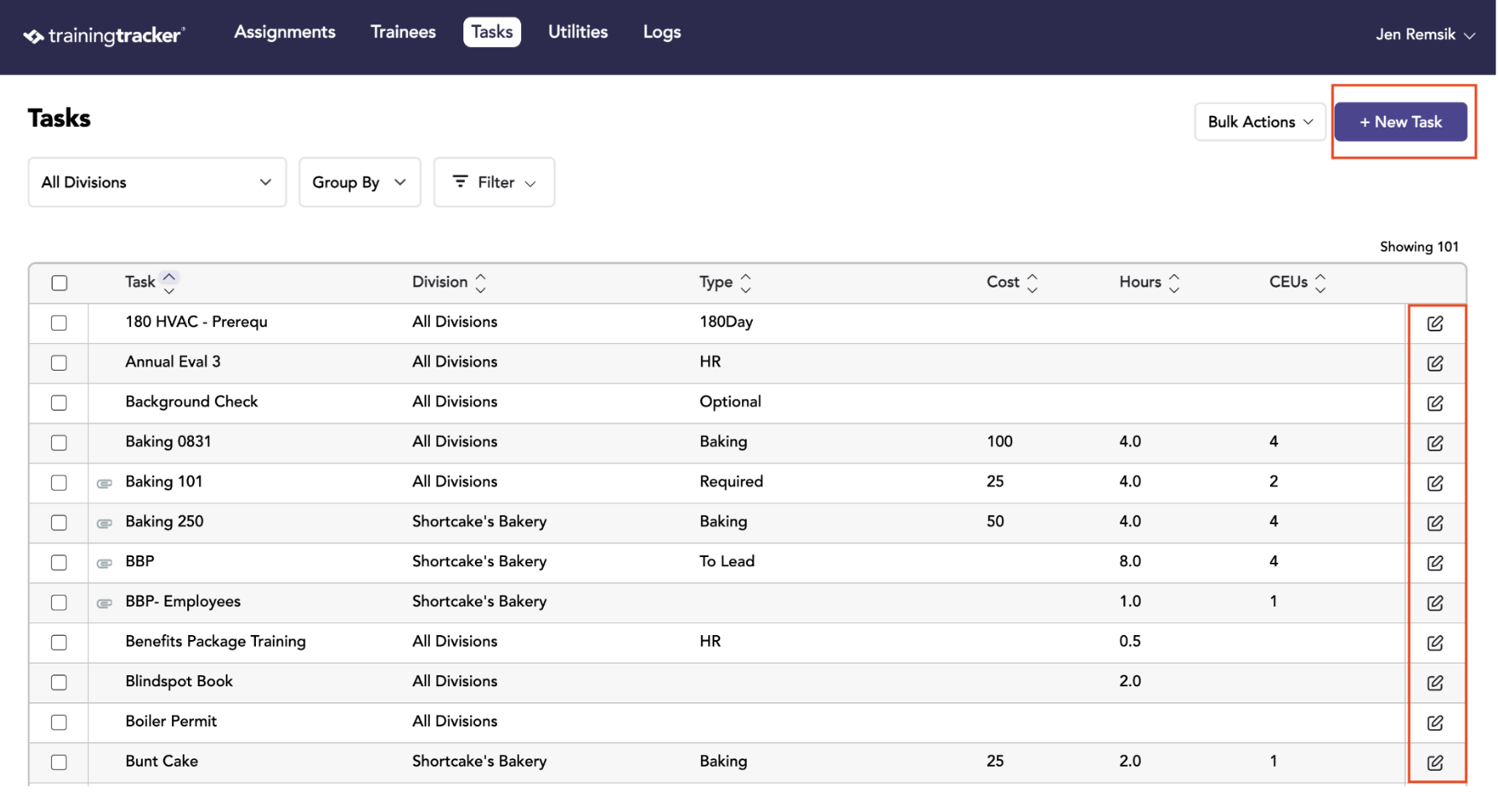
Existing Tasks can be edited by clicking the Edit button on the far right of the desired row.
Edit a Task
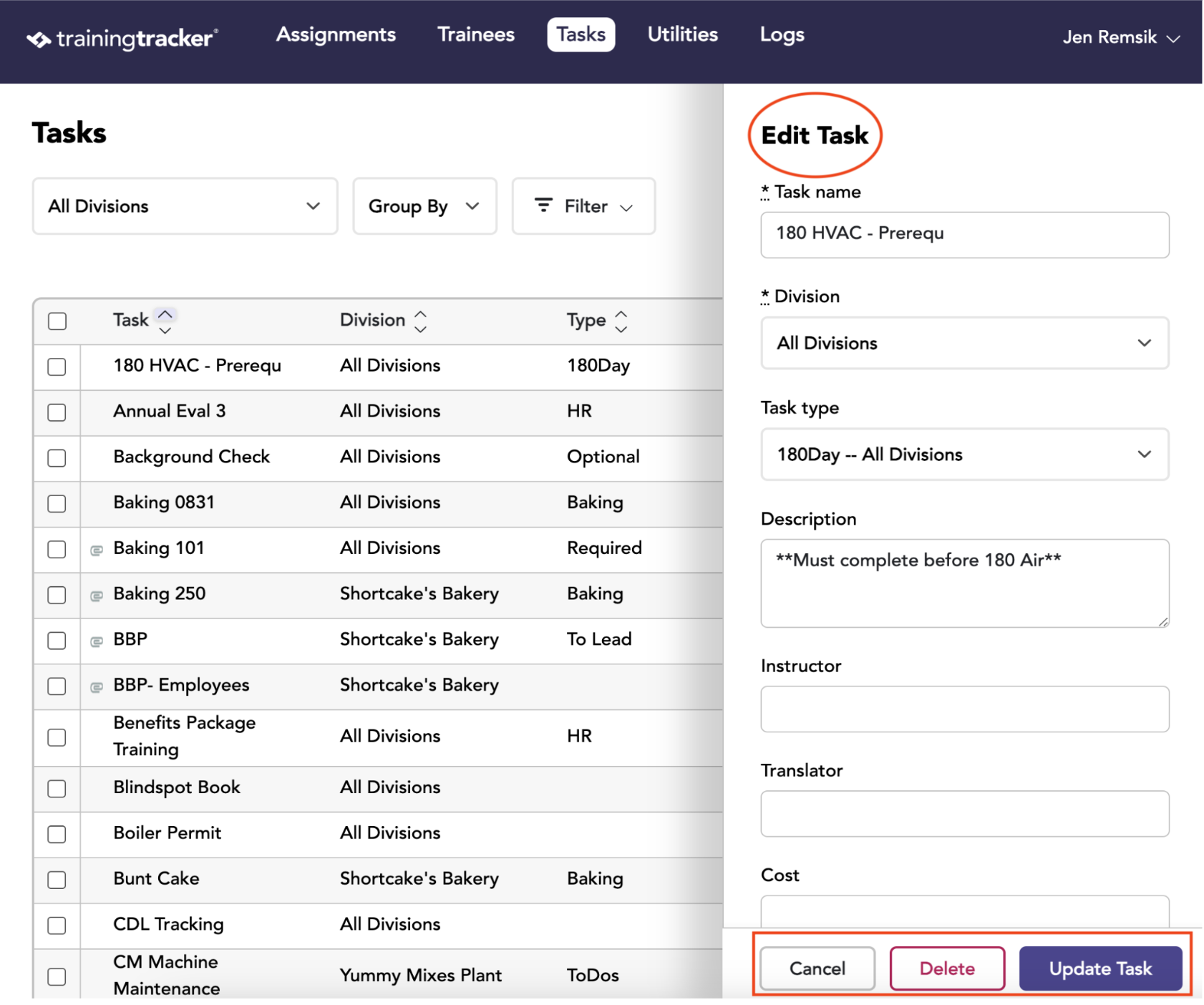
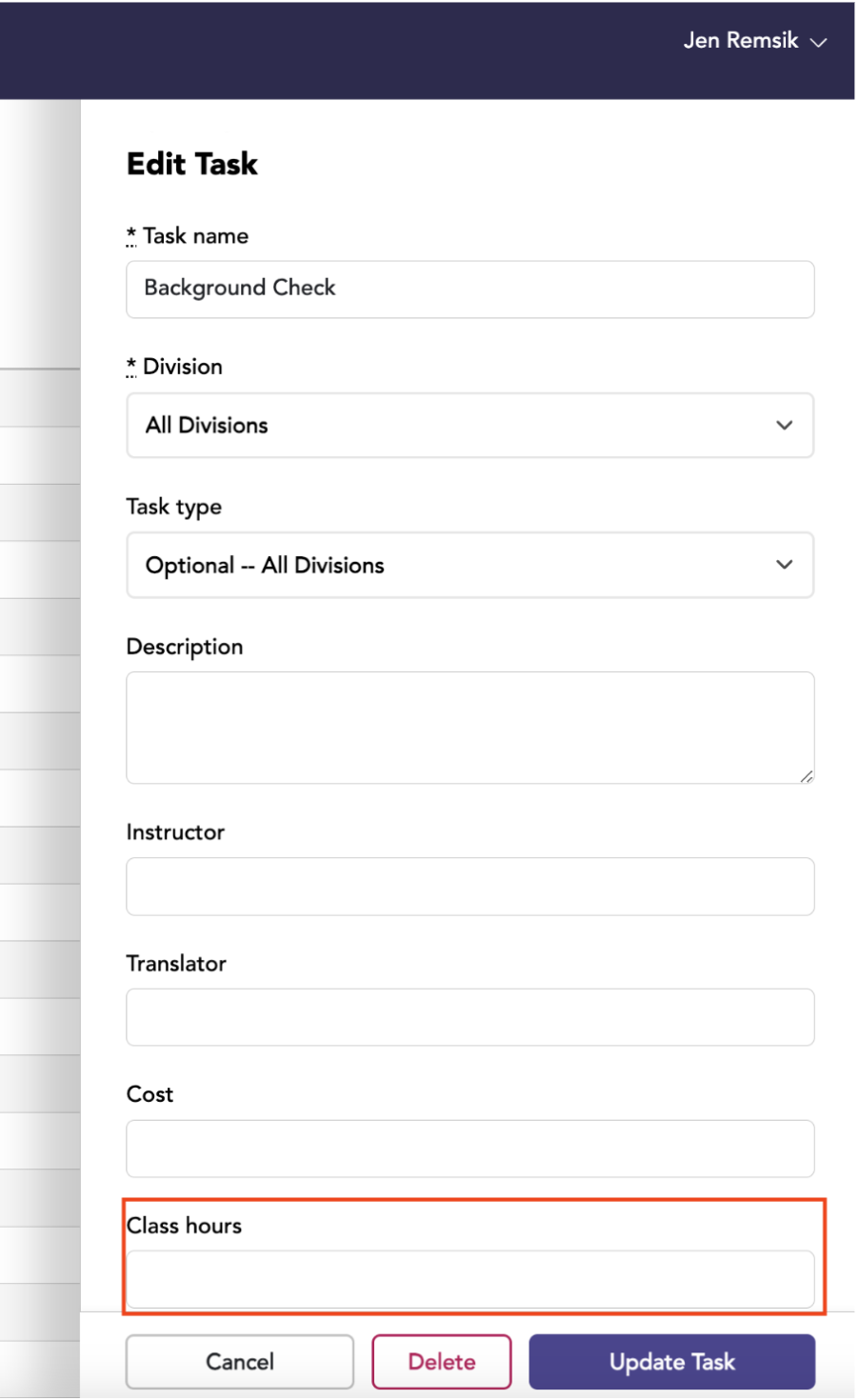
From the Edit Task you can apply any needed updates and delete the tasks.
Enter Information
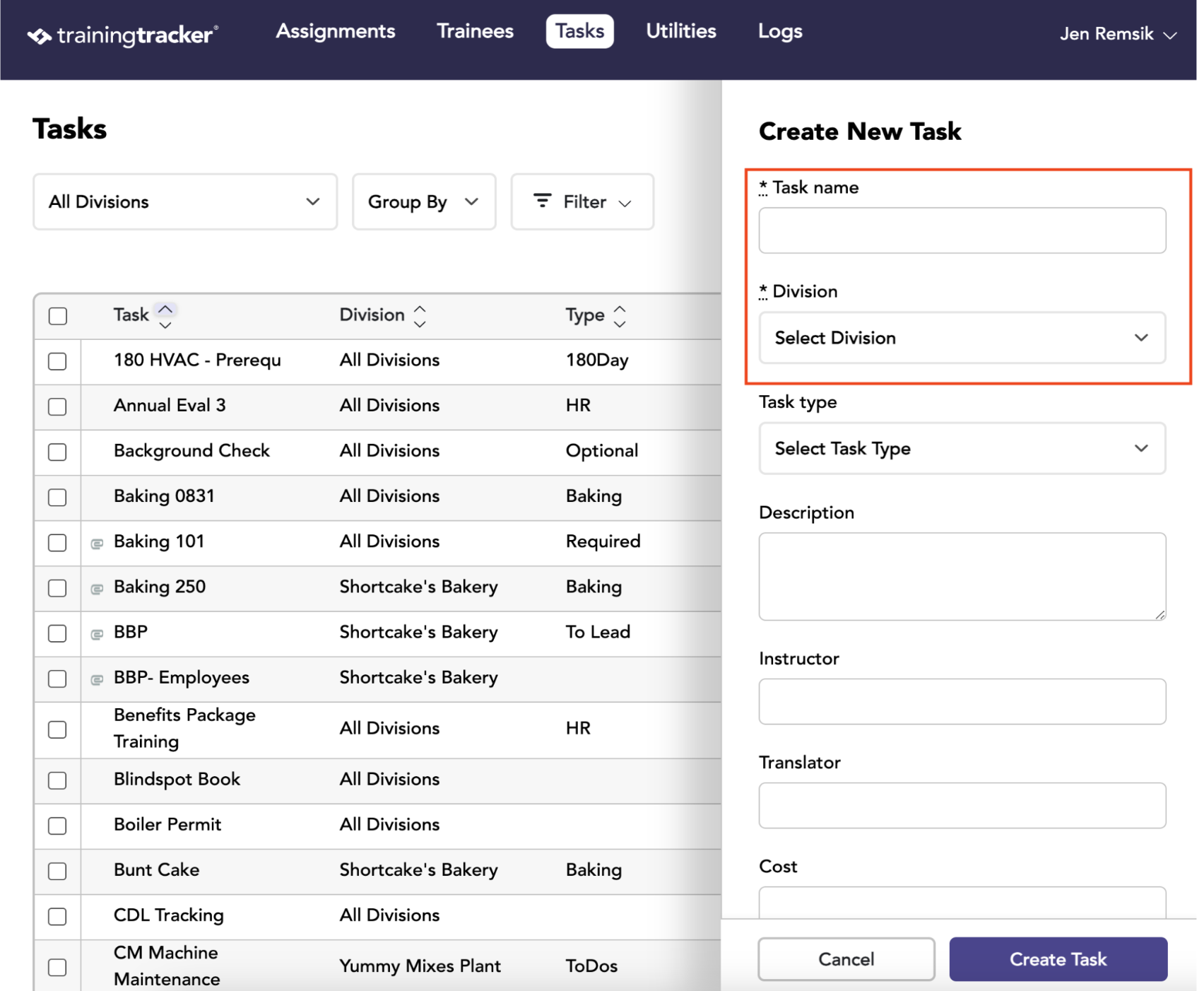
Fill in the fields on the “create new task” form and then click “Create Task”.
Task name and Division are required fields.
When a task applies to more than one division, select All Divisions.
You can clearly document any task length other than 1-hour increments. In the Class Hours field when creating or editing a task, enter a decimal amount to indicate approximately how long the task will take the trainee. Enter .75 for 45 minutes, .5 for 30 minutes, or .25 for 15 minutes. (Formula x minutes/60)
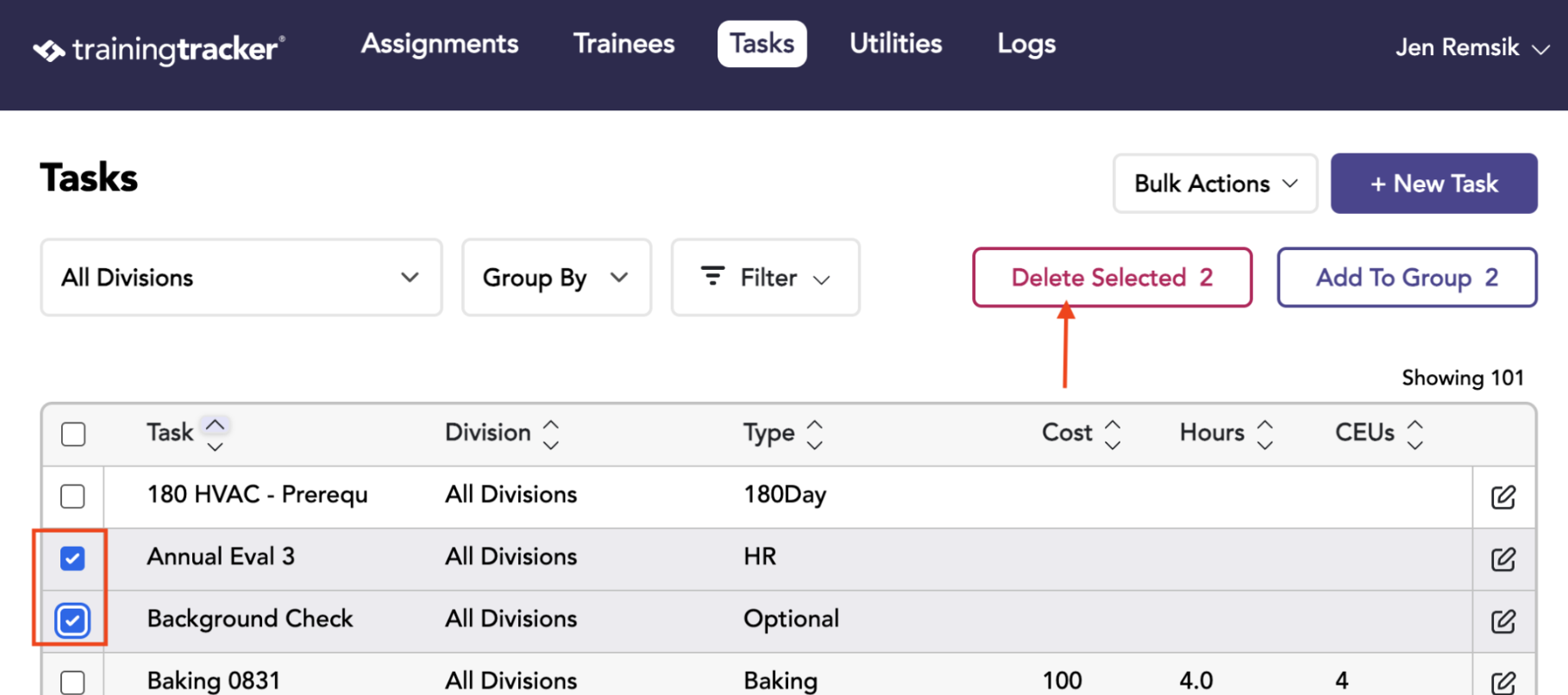
Deleting a Task
As noted above, you can delete a task from the Edit task view.
A Task can also be deleted by checking the box in front of the names and clicking the “delete “ button.
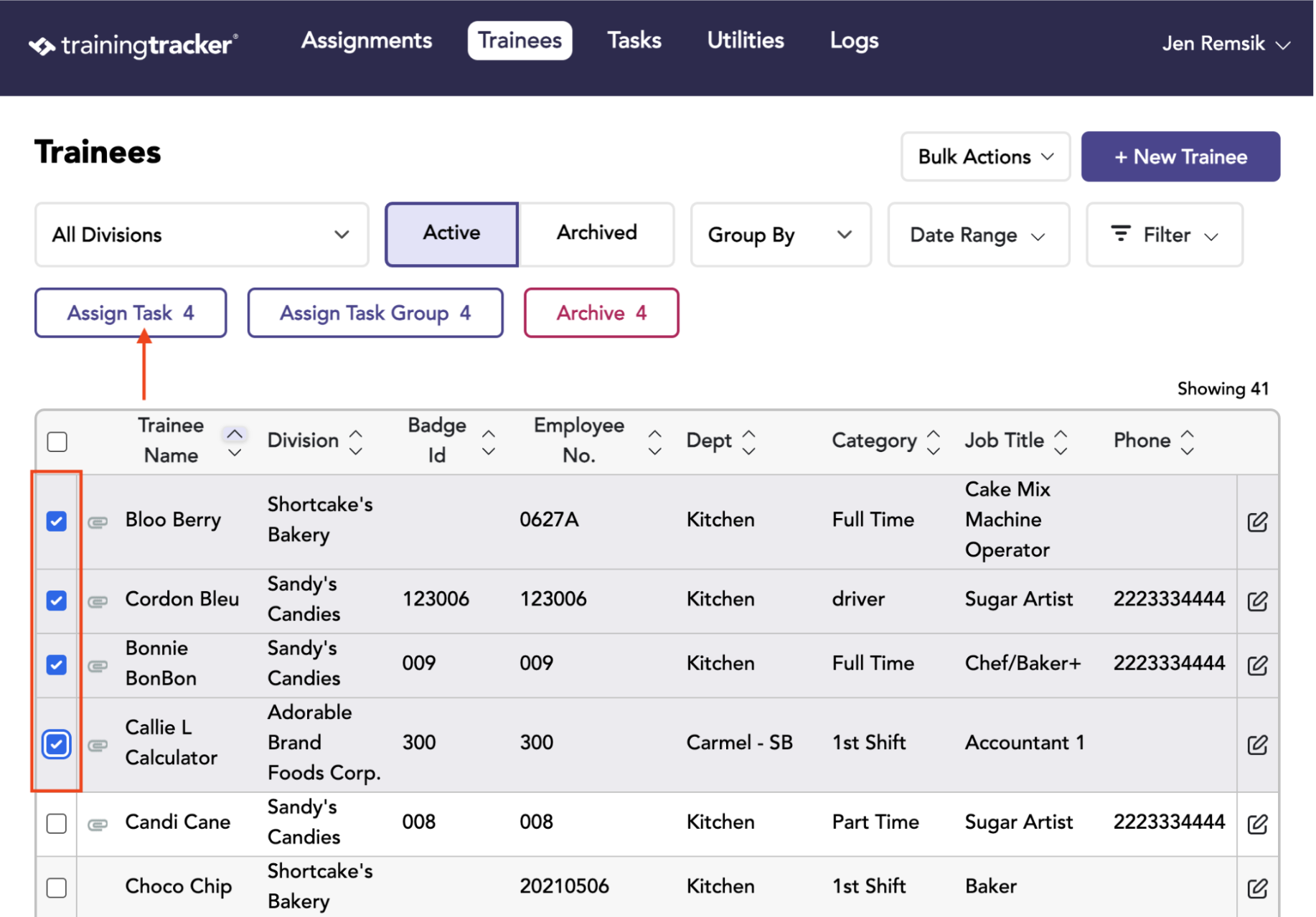
Assigning Tasks (Option 1)
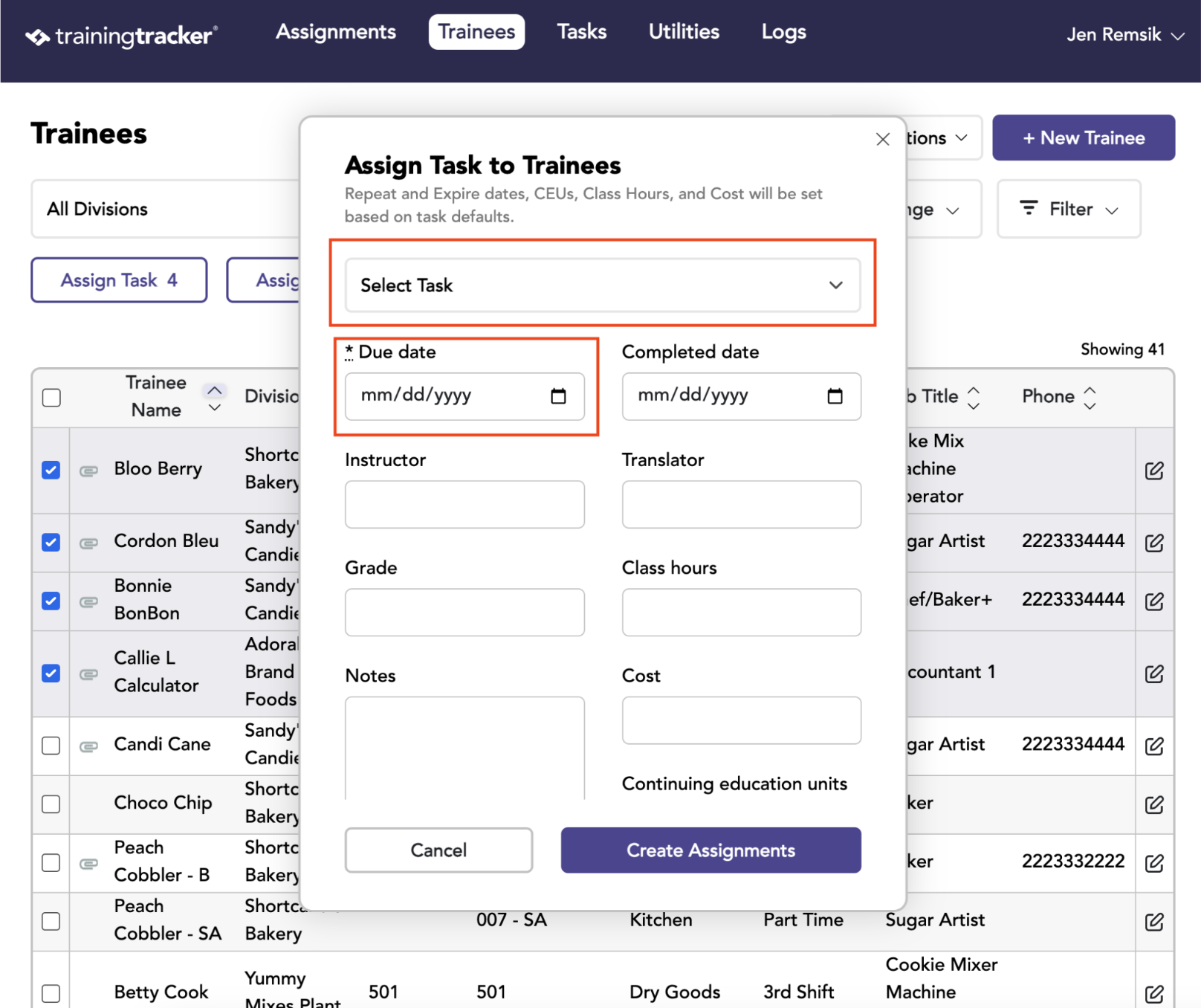
On the Trainee tab, select the people to receive a task by checking the boxes to the left of their names on the list.
Once selected, click the Assign Task button.
The “Assign Task” window will appear. Choose the Task to be assigned by selecting it on the drop-down (all existing tasks will appear as options) and give it a Due Date.
The remaining fields in this window may be automatically filled in with information from the Task’s existing information, but can also be overwritten for the specific people the task is currently being assigned to.
Assigning Tasks (Option 2)
Go to the Assignments Tab, which lists all current assignments with relevant dates.
To assign a new task, click on the Create New Assignment button.
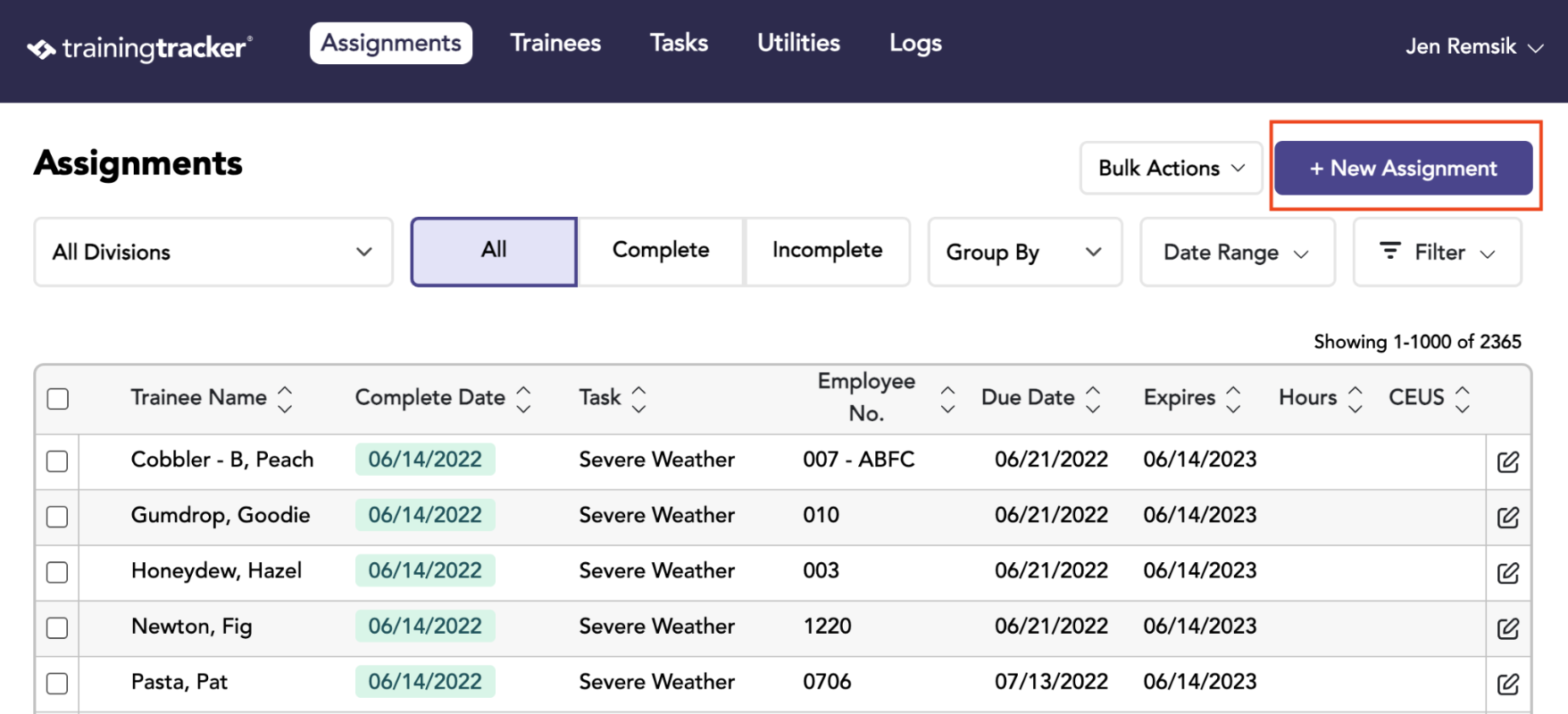
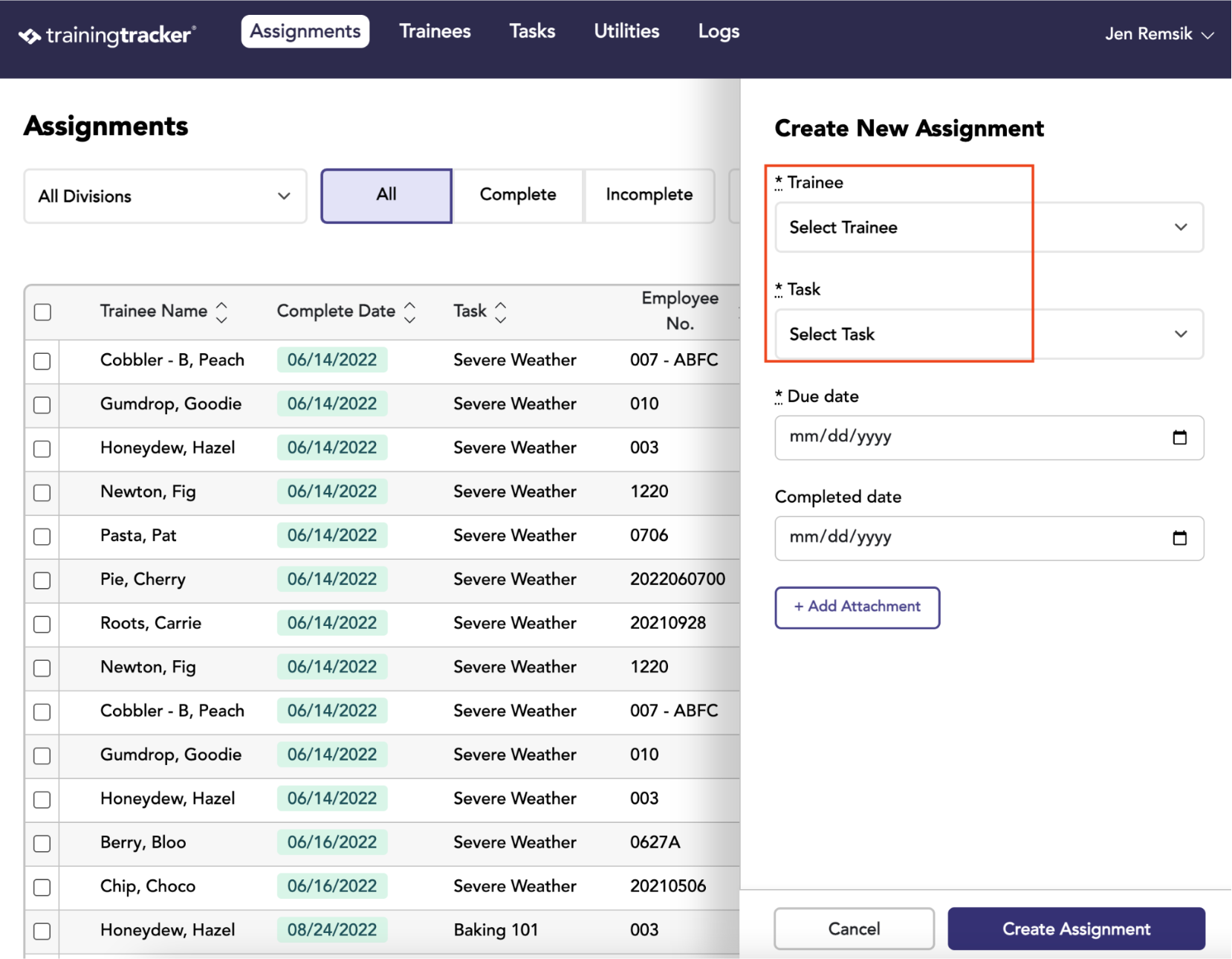
You will be taking the Create New Assignment window. Here, you can select the Trainee, the Task to be assigned, and the Due Date.
A Completed Date can be recorded along with any desired notes.